Unlike annotations created directly on a map, annotations added to user map layers are available to all maps. Display changes are replicated across all maps in which that user layer is displayed.
User Layers must be saved in the map data directory in order for them to appear in AccuMap, but within the map data directory they can be saved within a folder or multiple nested folders. AccuMap automatically finds any files with a .usrlay suffix anywhere in the map directory or within its subdirectories.
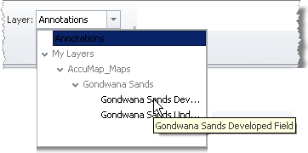
If working with annotations on a User Layer, that layer must be both selected in the Layer Legend (so that its annotations are visible), and displayed as the current layer in the Layer drop-down list in the Annotation ribbon toolbar (so that its annotations are selectable). Below, a User Layer is being selected from the Layer drop-down list.
 ) or Copy Selection (
 ) followed by whether to move or copy it to a new or existing layer.
 Depending on your selection above, either the Create User Layer dialog box (Move to New Layer) appears, or the My Layers drop-down list (Move to Layer) appears.
 ) in the User Layers group of the Annotations tab to display the Attach User Layers dialog box, where you select the user layers to make available in the Layer Legend for either the current map or for all maps. Instead of selecting specific layers, select a folder to automatically make all of the layers within that folder available to the current map or to all maps, and then click Apply.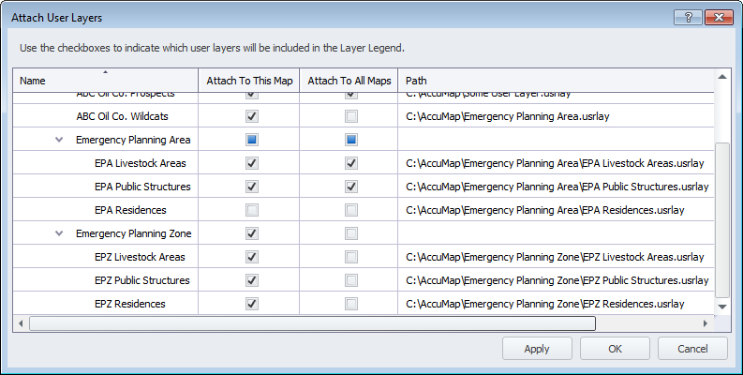
 Related Topics