Configuring Default Map Settings
Set the default background color and posting scale cutoff for maps. These changes apply to all new maps. When map background color and posting scale cutoff are specified for an individual map, those settings are saved along with the map. Change the directory where AccuMap saves files related to the current map at any time without changing the default map data directory; see Related Topics below for details.
Select whether to use proprietary or system directional surveys (or some hierarchical combination of both). This preference is reflected throughout AccuMap where proprietary directional surveys are used: contouring tops, displaying the DataCard: Directional Survey and Wellbore Schematics tabs, plotting in Profile Viewer and 3D Wellbore Viewer, and displayed on the Map when the Show Wellbore option is enabled in the Layer Properties pane in the Layer Legend when the Wells layer is selected. Where you specify only User directional surveys appear and only a System directional survey is available for a given well, rather than render the well according to the available, but undesired directional survey, AccuMap connects the top and bottom hole by drawing a straight line between the two.
To configure default map settings
- Using the Ribbon toolbar, click File and then Settings.
The dialog box appears.

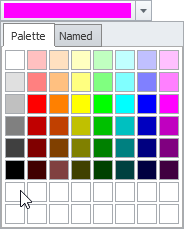
To pick a color by typing RGB values, click the drop-down arrow on the color field to display the Color dialog box, and with the Palette tab displayed, right-click a blank chip at the bottom of the tab as depicted below to display the Color gradient window where you either click to select a defined basic color, or type values in the Red, Green, Blue box and then click OK to replace the original color in the Application Settings dialog box with this one.
- With Map selected in the left navigation pane, select a default background color and a scale cutoffs above which certain items no longer appears on the map.
- Specify custom colors for map objects to differentiate when they are hovered over during inspection, selected either by individual click or by clicking and dragging the cursor, or selected in the navigation pane of the DataCard.
- If licensed for Canadian directional surveys, select whether to use proprietary or system directional surveys (or some hierarchical combination) throughout AccuMap.
- Click Apply to view the changes before dismissing the Application Settings dialog box, or simply click OK.
To save configuration properties as the default settings for future maps, using the Ribbon toolbar, with the View tab displayed, click Save as Default.
 Related Topics