Configuring LandCard Tabs
Configure what data to display in various panes on the LandCard tabs, create and remove individual panes from each tab, and even create or remove tabs. You can save a tab and pane configuration to disk so that it's automatically used with all DataCards, or revert to the original system DataCard tab and pane layout.
When you save a configuration, it's only saved for the data type currently displayed in the DataCard (or the active data type, if multiple data types share the same Data Navigator pane) so you can create unique configurations for each type of data.
You can not create a new tab with the same name as an AccuMap system tab (Land Summary, Production, etc).
To change what data appears in panes
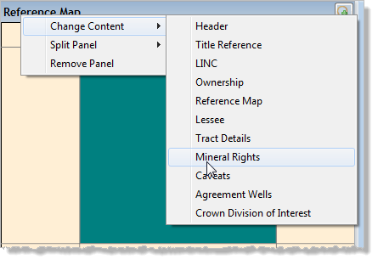
- With a DataCard and the pane to configure displayed, right-click the pane title bar as depicted below and from the context menu, select Change Content followed by the type of data to display.
To rename tabs
- With a DataCard and the tab to rename displayed, from the Layout menu, select Tabs > Rename Tab.
The Rename Tab dialog box appears.

- Type the desired name for the tab, and then click OK.
To create new tabs
- With a DataCard displayed, from the Layout menu, select Tabs > New Tab.
The New Tab dialog box appears.
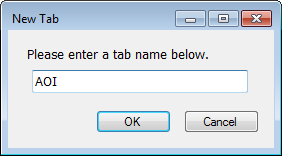
- Type the name for the new tab, and then click OK.
You can configure the tab by splitting panes multiple times and then displaying different data in each as described in this topic.
- To undo the above, either select Layout > Tabs > Delete Tab or select Layout > Reset Layout and either To System Default or To Last Saved.
To split panes
- With a DataCard and pane to divide displayed, right-click the pane header as depicted and from the context menu, point to Split Panel, and then click either Vertical to bisect the vertical axis, or Horizontal to bisect the horizontal axis.
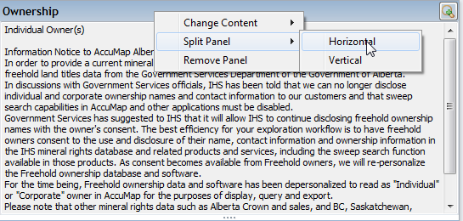
- Remove panes by right-clicking the pane header and selecting Remove Panel from the context menu.
To reset system defaults
Reset the current layout to either the last saved user configuration or to the original system defaults.
- From the Layout menu, point to Reset Layout, and then click either To System Default or To Last Saved.
 Related Topics