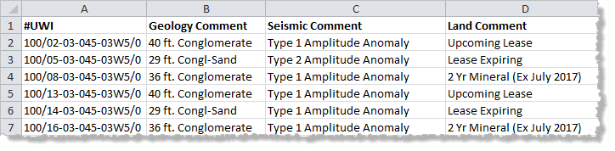
Contour and post from unique data for specific wells listed in a csv file.
To create a new csv file, export a list of UWIs using Export Manager (Excel tab, System - Well Header template) so that you don't have to type individual UWIs. Then modify the spreadsheet using Microsoft Excel and save it in .csv format.
The left-most column in the spreadsheet must include UWI or API numbers and #UWI must be typed in the column header with a hash character (#) followed by UWI in capital letters. The remaining columns can include any data to post but must have a column header.
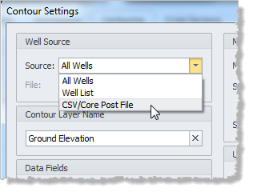
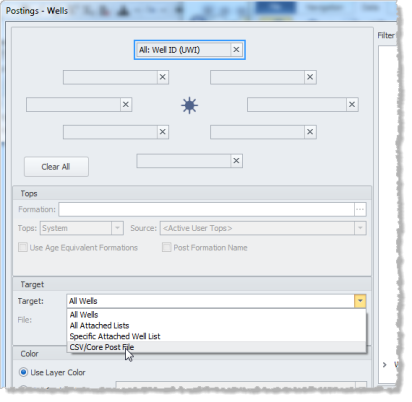
Once the CSV file is created, the option to either contour or post using this data is simply a selection from Source drop-down list in the Well Source pane of the Contour Settings dialog box, or a selection from the Target drop-down list in the Target pane of the Postings dialog box, each of which are depicted below.
| Contour Settings dialog box | Posting dialog box |
|---|---|
|
|
CSV postings are colored the same as the color of the well symbols when the Wells layer is set to visible in the Map Legend. Where the Wells layer is not set to visible, but a well list is, the postings are colored the same as the color of the well list symbols. Where multiple lists are visible concurrently, the color of the well symbols in the list rendered last.
 Related Topics