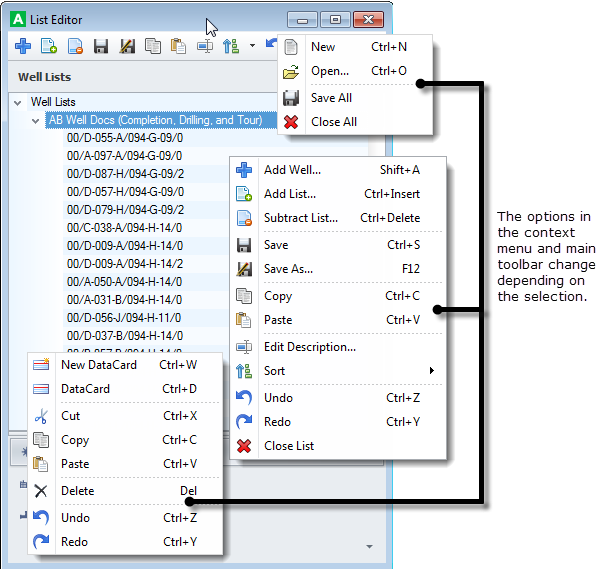
Aside from pointing and clicking, dragging, or querying to create lists, List Editor is another way to manage lists that provides a graphical view into the IDs within an existing list, or a list you are currently creating. Bulk import, copy, deletion can be completed. Individual IDs can be added using the Quick Search dialog box. Results can be sorted using different data attributes.
Toolbar options at the top of the List Editor dialog box and in the context menu change depending on whether you select the root node, a list, or an item in a list.
Following are the various features of the List Editor dialog box:
Use List Editor to modify an existing list or to create a list from scratch. Separate procedures of each appear below.
 ).
).The List Editor dialog box appears.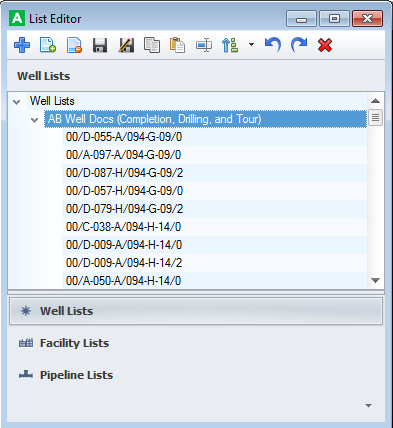
 ).
). ) in the main List Editor toolbar to display the Open Lists dialog box where you select the list that includes the items to add. The imported items appear in the list.
 ) - display the Quick Search dialog box where you select the domain, type the ID, and then click Search. With the item to add selected in the results, click OK. The selected item(s) from the Quick Search dialog box appears in the List Editor display pane.) - to display the Open Lists dialog box and select the list with items to add to the new list and then click Open.
 ), browse to the file, and click Open.
 ) to display the Edit Description dialog box.
The name of the list that appears in the Lists pane appears bold and is prefixed by an asterisk to show that the list has changed.
.png) - main node,
- main node, .png) - single node) or Save As (
- single node) or Save As ( ).
). ).).
).).The List Editor dialog box appears.
 ).) in the main List Editor toolbar to display the Open Lists dialog box where yo u select the list with the items to import and then click Open. The imported items appear in the selected node in the List Editor display pane.
The Open Lists dialog box appears displaying the lists in the current map directory.
 ) button appears, and then click the Filter button and select one of the following:
 where you click whether to delete it, disable it, or edit it. For details on filtering and sorting rows and columns in the Attach List dialog box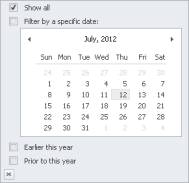
 ) or descending (
 ) order.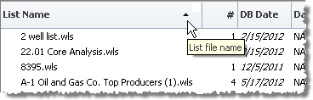
Depending on whether you opened a list or added the items from a list to an existing node, items in the list appear either beneath a new list node or beneath an existing list node. Hover the cursor over a list node to get summary information including the path, number of items in the list, and so on. 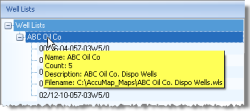
). This displays the Quick Search dialog box where you select the domain, type the ID, and then click Search. With the item selected click OK to add it. ). To remove list items that match items in a file that's saved to disk, with the desired list node selected, click Subtract List (), browse to the file, and click Open.
 ), and then select the recipient list and click Paste (
 ). To move items from one list to another, Shift+drag. An item is only copied to a list once.
Drag the items to move against the top or bottom of the list display pane to scroll the list up or down, as depicted below.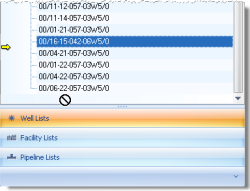
 ) or New DataCard (
 ).
). ), click the value by which to sort in ascending value. ) to display the Edit Description dialog box.
The name of the list that appears in the Lists pane appears bold and is prefixed by an asterisk to show that the list has changed.
- main node, - single node) or Save As ().). Related Topics