 ).
).Cut, copy, and paste annotations into any map window or into any layer that appears under My Layers in the Layer Legend.
To cut or copy a group of annotations, select multiple annotations before performing the cut or copy operation (Ctrl+Click or Shift+Click to select multiple annotations). For example, you can copy paste or move an annotation from one User Layer to another.
Pasting annotations to User layers has certain advantages over pasting them to the default map. User Layers aren't dependent on any map, but are available to all maps. Annotations added to User Layers can be configured and changes are replicated across all maps in which that user layer is displayed.
).If working with annotations on a User Layer, that layer must be both selected in the Layer Legend (so that its annotations are visible), and displayed as the current layer in the Layer drop-down list in the Annotation ribbon toolbar (so that its annotations are selectable). Below, a User Layer is being selected from the Layer drop-down list.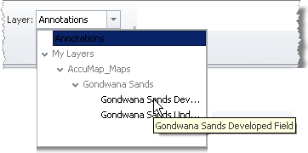
The selected annotations show node selection handles indicating that they are selected. Below, a triangle and a circle are selected.
To cycle through multiple overlapping annotations, hover the cursor over the annotation group and press the SPACE Bar. Ctrl+Click or Shift+Click while cycling through annotations to select multiple annotations.
 ).
). ).
). ) to display the pasted annotation offset from the original copied annotation, or Paste to Original Location (
 ) to paste it directly over top of the originally copied annotation.
 ).
).The annotation is pasted to the same geographic coordinates in the new window providing those coordinates appear within the map extents defined by that window and that another annotation doesn't already occupy that location. Where the geographic coordinates are not within the extents of the map, or another annotation already occupies the desired location, the annotation is simply pasted in the centre of the current window. Where multiple annotations are pasted at once, the first annotation selected is pasted in the centre of the map and the offset between all the selected annotations are maintained. When an annotation is pasted multiple times, each paste is offset slightly down and to the right.
 ).) enabled right-click the node and select Delete Node from the context menu.
 Related Topics