Exporting Data to Microsoft Excel
Export data for a single item or for multiple items stored in a list to Microsoft Excel. If using a list, that list must be up-to-date before it can be accessed by Export Manager. For information on updating lists, see Related Topics below.
Launch Export Manager using either the context menu that appears when you right-click a well on the Map, by clicking ( ) in the DataCard, or using the Tools > Export Manager menu.
The specific data fields exported and the order in which the data is laid out in the spreadsheet is controlled using stock or custom templates. Select one or more templates, each of which comprises a separate worksheet in the resulting Microsoft Excel spreadsheet. For details on creating user-defined templates, see Related Topics below.
To export data to Microsoft Excel
- Do one of the following:
- Map - using the Ribbon, with the Data tab displayed, click Export Manager ().
- DataCard - with the desired item selected in the Data Navigator pane of the DataCard, click Export Manager (). This option isn't available when more than one item is selected in the Data Navigator pane.
- While in Inspect mode, right-click the desires item on the map and from the context menu, select Export Manager.
The dialog box appears.
The items that appear in the dialog box may differ depending on which of the methods above you used to launch Export Manager.
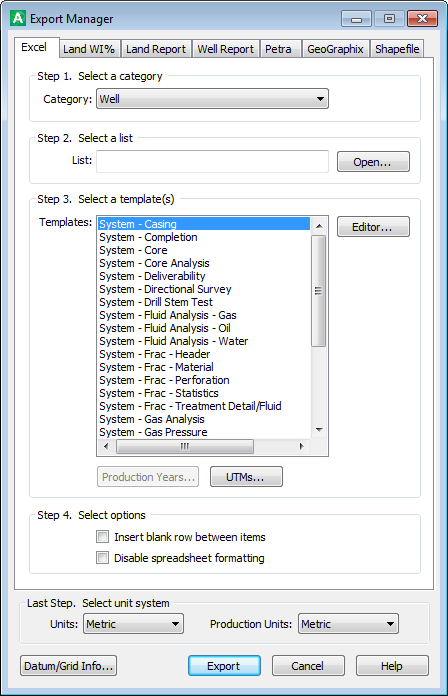
- If exporting data for items that appear in a list, complete the following steps:
- Using the Category drop-down list, select the data type (well, facility, pipeline, etc.) upon which to base the export.
- To the right of the List Folder box, click Browse and navigate to the folder that contains the list of items to include in the export.
The items in that list appear in the display pane below the List drop-down box. If the list is out of date, an information message appears. Once you update the list, you must select a different data type (field, facility, etc.) and then reselect the desired data type to refresh the Export Manager dialog box.
- In the Templates pane, select either one or more existing templates with which to export the data (Shift+Click or Ctrl+Click for multiple selection), or click Editor to launch the dialog box and change the data columns and their order in an existing template, which controls the order in which that data is laid out in Microsoft Excel.
The following options appear beneath the Template box depending on the type of list you're exporting:
- Production Years - the option is shown when Facility is the selected category. Click to specify a date range. This range isn't saved with the selected template, but applies to all templates in the Templates list that include production data columns until you either change the date range to All or close the Export Manager dialog box.
Note that the Production Summary template is for the last month's production only.
- UTMs - click and from the UTM Configuration dialog box, specify one UTM zone or central meridian for all items in the list, or use the central meridian for each well determined from the UTM zone in which that well resides.
- All Lines - click to export data for only a pipeline segment in your list, or data for all the segments that comprise the entire pipeline of which a line in your list forms a segment. If selected, lines included in your list are highlighted in the Microsoft Excel spreadsheet to differentiate them from other segments in the same pipeline.
- Select additional options including the measurement units, whether to insert blank rows between each exported item, and for Canadian data, whether to use a NAD83 or NAD27 datum reference with either the 2.6 or 4.1 ATS grid by clicking Datum/Grid Info. Note that by default, the list is exported using the datum option defined in the Datum Settings pane of the AccuMap Defaults dialog box (Edit > Defaults menu).
- Click Export.
If the selected template contains well production history attributes, you will be prompted to select whether to export All production data or to export only production data for the defined production date range.:
You can also specify whether to use NAD27 or NAD83 datum for exports in the AccuMap Settings: Export dialog box. For details, see Related Topics below.
A dialog box displays the current status of the export.
- To abort the export, press ESC. The list items processed up to that point still appear in Microsoft Excel.
 Related Topics