Finding Items using Quick Search
Use Quick Search to find specific items in the facilities, fields, pipelines, pools, units, or wells data groups.
From the DataCard, there is also the option to Find a Well ( ). This option appears in the top-right of the Area Wells tab in the Data Navigator to the right-side of the DataCard and is described below.
To find items using Quick Search
- In the main ribbon on either the Data tab of the map window, or of the DataCard, click Quick Search ().
The Quick Search dialog box appears.
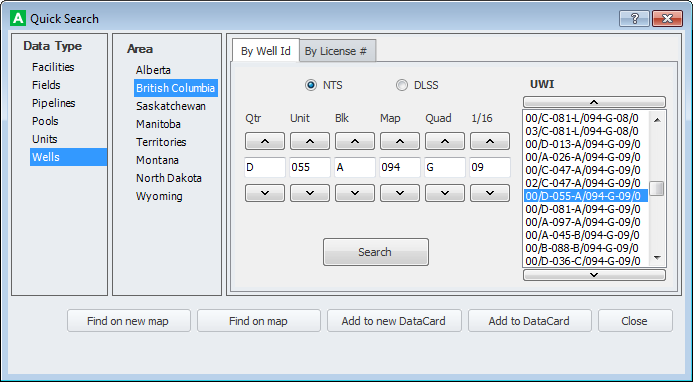
- Select the Data Type (Facilities, Fields, etc.) in the left-most pane, and then select the geographic region within which to search (Alberta, British Columbia, etc.) in the Area pane.
The controls that appear in the right-most pane depend on the Data Type and the Area selected.
- Specify the search terms, and then click Search.
- Using the drop-down list on the right side of the Find on Map button, click Clear Previous Search Results to ignore previous searches, so that your present map scale remains the same.
To find a well using the Data Navigator pane
- With the Area Wells tab displayed in the DataCard Data Navigator pane, click Find a Well (
 ) in the top-right of the tab.
The dialog box appears.
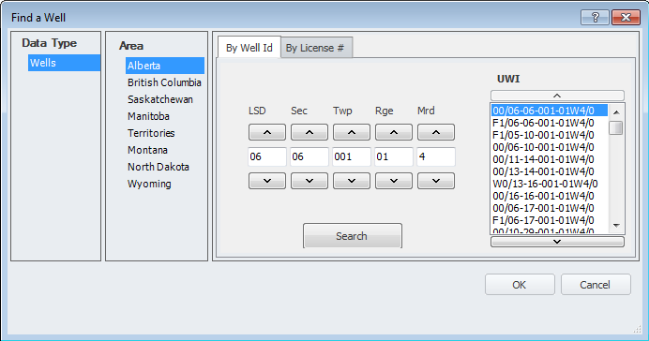
- Select a geographic area (Alberta, British Columbia, Saskatchewan, etc.) and then either type the UWI of the desired well, or click the increment and decrement buttons that appear above and below the UWI boxes, and then click Search.
The display pane scrolls to the item(s) that most closely matches the ID specified above.
- Select the desired item and then click OK to center and highlight that well in the Data Navigator pane of the DataCard.
- Using the drop-down list on the right side of the Find on Map button, click Clear Previous Search Results to ignore previous searches so that your present map scale remains the same.
 Related Topics