 ).
).AccuMap enables you to import user tops from either a .csv file or a .txt file into your database of user tops. A .csv file can be imported files using the One Well per line option. Either .csv or .txt files can be imported using the One Top per line option.
).The Import Manager Welcome dialog box appears.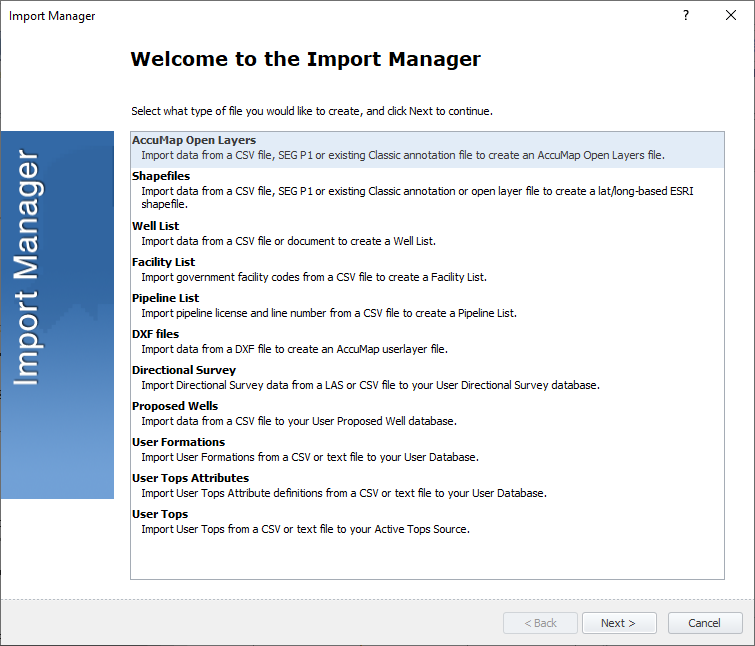
The Input File dialog box appears.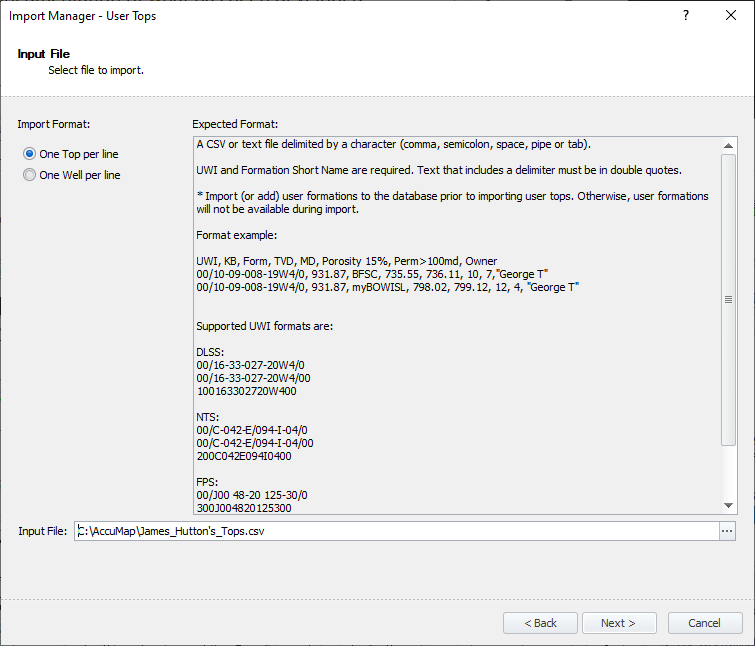
Key requirements are listed in the Expected Format pane.
If you selected One Top per line above, the following dialog boxes appear:
Input File Format dialog box.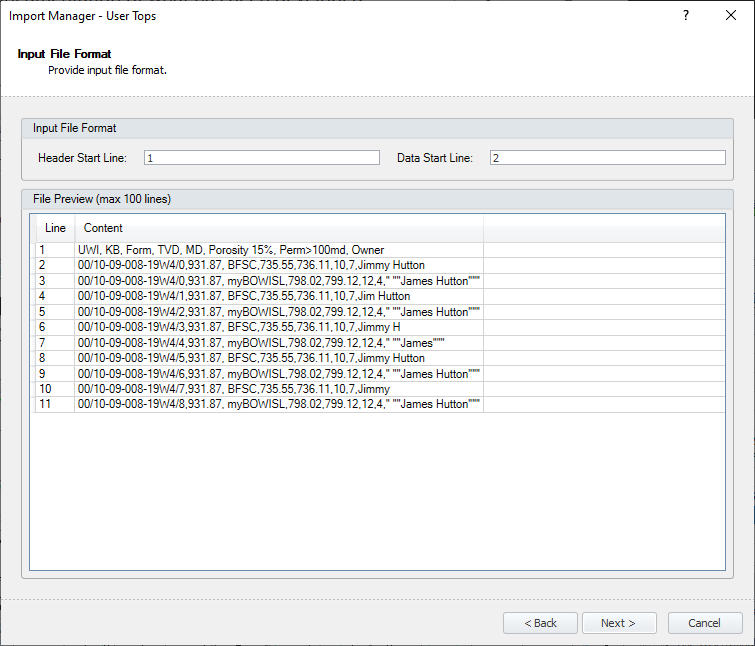
Select the line number on which the header and the data start, and then click Next.
The Parse File Option dialog box appears.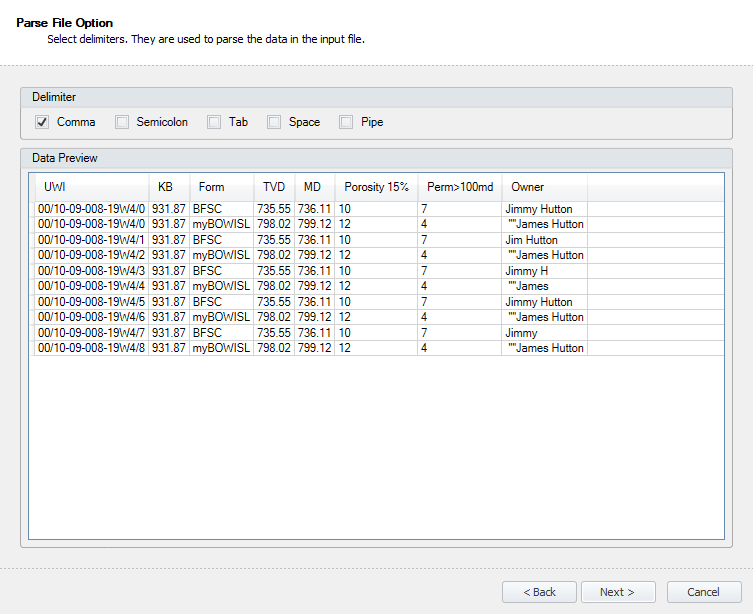
Specify the internal file delimiter(s), and then click Next.
| Column Mapping (One Top per line) | Column Mapping (One Well per line) |
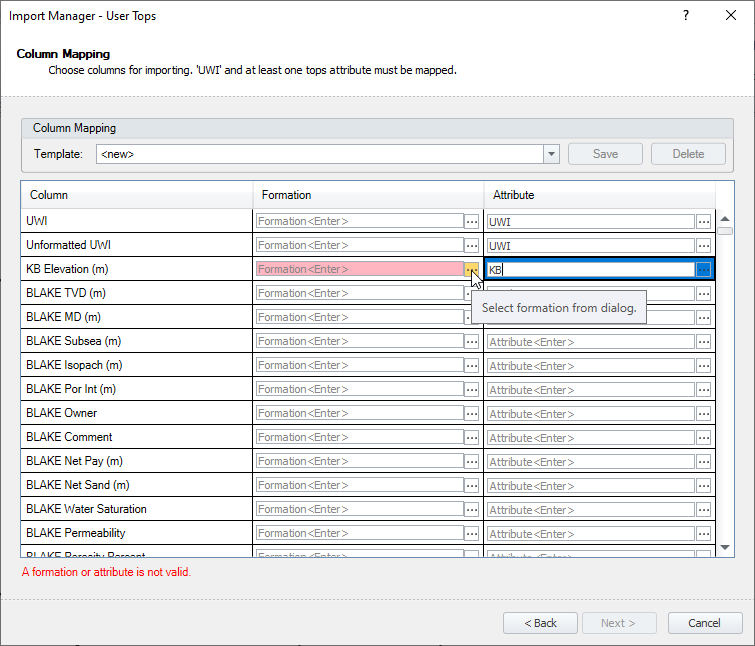 | |
The following Import Options dialog box appears.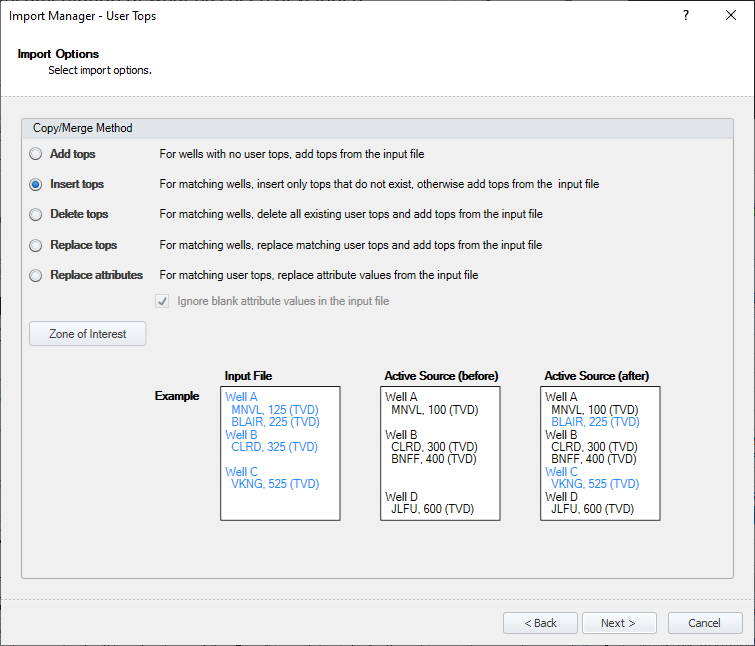
The Additional Import Options dialog box appears.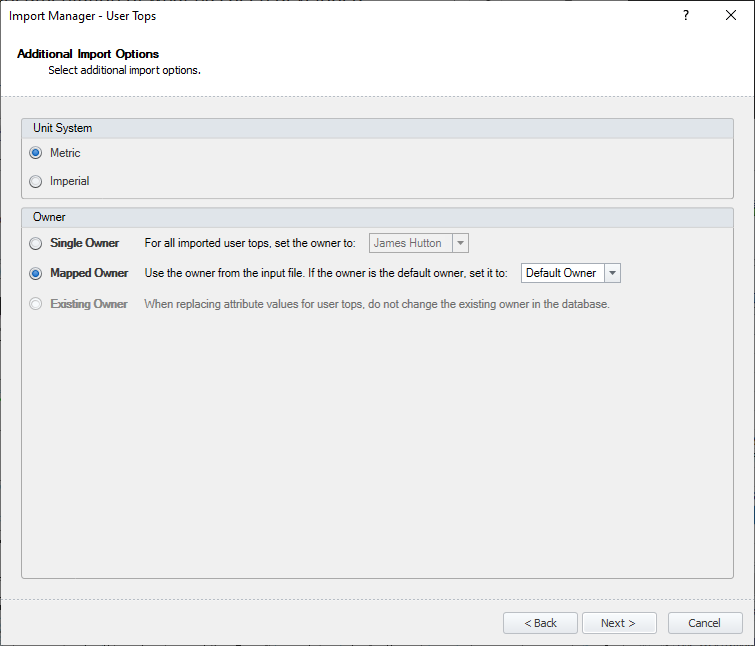
If you selected One Top per line above, the following dialog boxes appear:
The Formation Mapping dialog box appears.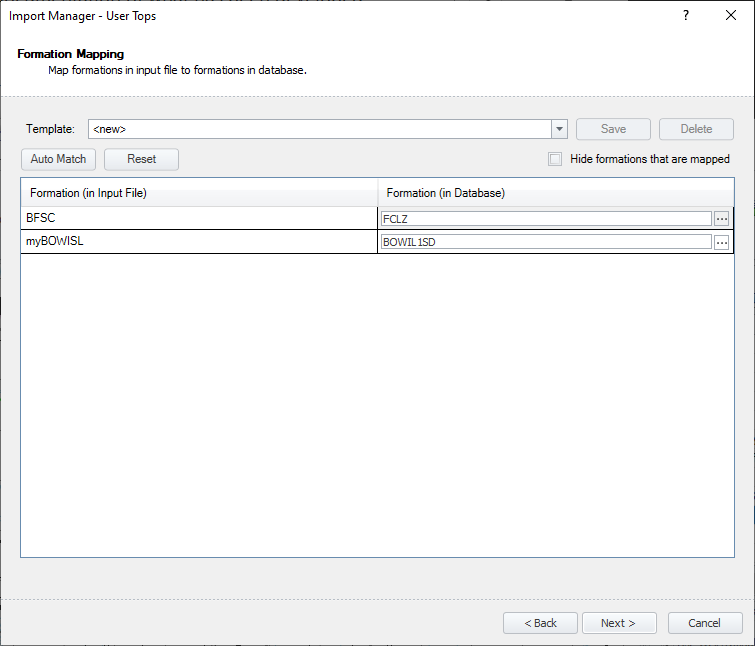
Map the formation names to the equivalent formation in your user tops database, and then click Next.
To save your column mappings as a custom template file that AccuMap automatically polls when auto-matching formation names, type the name of the desired template file above, and then click Save.
The Ready to Import dialog box appears.
The User Tops Complete dialog box appears.
 Related Topics