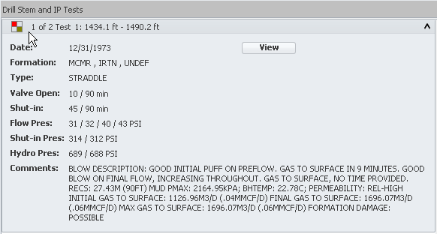
Display DST report information in the DST tab of the DataCard. The DataCard tab shows each of the tests for a given well in individual panes that you can expand. Where the test isn't classified as "IP" or as "mis-run," and where the test has either flow, recovery, or contaminants, symbols that depict the recovery fluids and gasses and the contaminants found during the test appear in the left side the test header as depicted below:
The recovery gas or fluid is depicted as a filled quadrant in the gas, oil/condensate, mud, or water quadrant. Contaminants are depicted as a spot in the center of the source quadrant. For example, in test 1 of 2 in the example above, water is a contaminant that occurred in a test where the recovery fluid from the test was mud.


The information displayed in the DST tab is also displayed using the Wellbore tab when you hover the cursor over a given test. Unlike the Wellbore tab, however, the DST tab also displays comments from the test and enables you to launch the actual scanned test images in the DST viewer.
Using the DST viewer, view DST data, adjust display properties, and then either print the data or paste it into a word processing or graphic application.
For details on interpreting DST reports, see Related Topics below.
The DST dialog box appears.
 or
or  to expand or contract all of the tests that appear in the pane, or click
  or
or  in the top-right of an individual test to expand or contract just the details for that particular test.
The View Images button does not appear alongside Initial Potential / Initial Production (IP) test data in the DST tab.
 Related Topics