
The Wellbore Schematic tab consists of a thumbnail view on the left, and a detailed wellbore view on the right. Drag the thumbnail viewport box along the wellbore thumbnail to control what's displayed in the wellbore detail pane. Click a location on the wellbore thumbnail without dragging the viewport box to center the viewport box on that location. The viewport box cannot be resized to change the volume of information shown in the wellbore detail pane.
When the cursor is hovered over an item in the thumbnail, summary information about that item appears in a popup window. When the cursor is hovered over that same item in the wellbore detail pane, more detailed information appears. When the item is clicked, even more information about it appears in the various tabs of the DataCard. For example, when the cursor is hovered over a formation top in the wellbore thumbnail pane, only the name and subsurface depth appears in the tooltip. When hovered over a top in the wellbore detail pane, the top name, measured depth, true vertical depth, subsea, isopach, and porous interval appear. When clicked, the above information as well as the short name and alias appear in the Tops tab of the DataCard.
The Wellbore Schematic pane can be torn away from the main DataCard window and used as a navigator for wellbore items where clicking an item in the Wellbore Schematic pane displays details relevant to that item throughout the DataCard. For details on tearing away DataCard tabs
The Wellbore Schematic tab appears.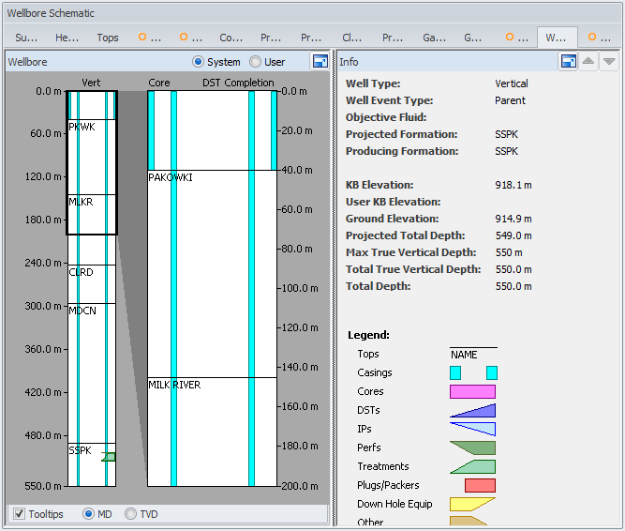
The portion of the wellbore displayed in the wellbore detail pane updates to match the portion of the wellbore enclosed by the thumbnail viewport box.
The KB Elevation for a user top is colored red where the elevation differs between the user top and the system top.
 Related Topics