 , but these exports only include a single data type, whereas the process below can include multiple data types. For details about the Send to Excel option, see Related topics below.
For Excel format, configure which data types, and which data attributes to include in the export. Microsoft Excel format enables you to export points, lines, polygons, as does Z-Map format.
For Browse and Graph windows, you can also export directly to Microsoft Excel by clicking Send to Excel , but these exports only include a single data type, whereas the process below can include multiple data types. For details about the Send to Excel option, see Related topics below.
To export data to Excel
1. Depending on whether you want to export data items currently displayed in a window or from a saved query, do either of the following:
From an open window. With the items to export selected in either the Query Editor, Map, or an Output window, from the Tools menu, click Export  .
.
From a saved query. From the Tools menu of an existing window, click Export , or from the Main Application Toolbar from the File menu, point to Open, and then click Export to launch an Export dialog box.
And then using the Export dialog box, from the File menu, click Open and browse to and open the saved query.
The Export dialog box appears.
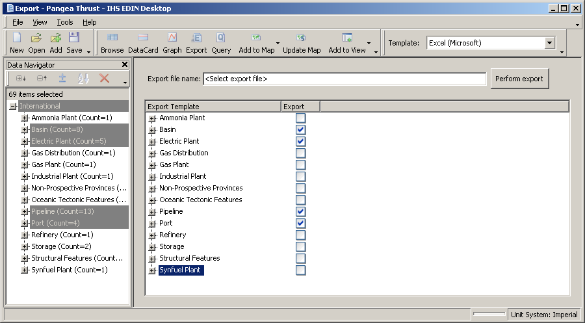
2. From the Template drop-down list, click Excel (Microsoft).
3. In the display pane to the right of the Data Navigator pane, first clear the data types you don't want to export, and then in the remaining data types that will be exported, clear any attributes that you don't want to export.
All data items in a data type that's selected are exported regardless of whether they're selected in Data Navigator. To prevent a data item from being exported, using Data Navigator, select the undesired data items and then click Remove Results 
OR
Using Data Navigator, select only the items to export, click Export to display them in a new Export window, and then export those results using the new Export window.
4. Click Perform Export, and then browse to a disk location.
5. Type a name by which to identify the exported file, and then click Save.
6. Once the export completes, launch Excel and open the file saved above.
| Exporting spatial data in Google Earth or shapefile format | Outputting Browse lists |
| Outputting graphs | Exporting well data |