When you save a query to disk from Query Editor or from an Output window, both the query criteria and the IDs of matching results are saved in a single file. When you open that query in Query Editor or an Output window, EDIN polls the current database using the saved query criteria, so you're always working with the latest information. If you want to use historic data instead of rerunning the query, using Query Editor attach the saved query file as a list instead. For details, see Related topics below.
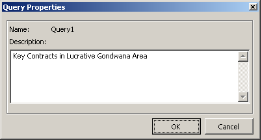
Type a query description to provide more detail than a file name allows, and then view this description to refresh your memory the next time you open the query using Query Editor.
Save queries to disk in other formats including Excel, and ESRI Shapefile, and more using the Export window. For details, see Related topics below.
To type a query description
1. Using Query Editor, from the File menu, click Properties.
The Query Properties dialog box appears.
2. Click to place your cursor in the Description pane, type details that distinguish this query from others, and then click OK.
The dialog box in which you type descriptions also enables you to press CTRL+C to copy highlighted text or CTRL+V to paste it.
To save queries to disk
1. From the File menu, click Save  , or click SaveAs if you've modified a query that's already saved to disk and want to save it with a different name.
If you have multiple Query Editors open and click Save, only the criteria and results for the Query Editor that's currently in focus are saved.
2. Browse to the desired location, type a file name, and then click OK.
| Opening saved queries | About the Export window |
| Querying using a list |