Query results are displayed in the Map window or in an Output window. When you select either the Map window or an Output window, your query is run and the results are automatically pushed into the Map window or Output window you selected.
You can pass results between different Map, Query Editor, and Output windows modifying them as you go. For example, you might query wells producing from a specific field, view those results in a Browse window to sort and then select certain wells of interest, and then push only those wells back into Query Editor to add additional query criteria. You could then push this information into a DataCard or the Map window for detailed viewing.
To view query results
Before viewing the actual data from your query, click the Get Count button to see how many hits the query will return and modify your query based on the volume of hits.
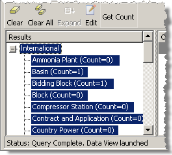
1. In the Query Editor Results pane, SHIFT+CLICK or CTRL+CLICK the attributes for which to output query results.
2. Click any of the following or select them from the Tools menu to display the query results:

Browse |
In a spreadsheet view that enables you to sift through large volumes of data by grouping, filtering, and sorting. |
|---|---|

DataCard |
One at a time with detailed information. To compare numerous items or to establish hierarchies, select the Browse option above instead.
|

Graph |
Individually or collectively plotted using pre-defined or custom templates to display trends. |

Export |
Exported to popular third-party applications. |

Add to Map |
On a separate map layer of spatial items on a current, new, or saved map. Each time you attach selected items to a map, they appear on a separate map layer. If you want to refresh one of the layers you've already attached, click Update Map  below instead. below instead. |
|
Update Map |
On a map layer of results you've already attached using the Add to Map option above. To attach a new map layer of results instead of changing an existing one, click Add to Map option above instead.
|

Add to View |
Add the contents of the current window alongside data in another output window. For example, a DataCard or a Browse window. |
EDIN queries the data types for attributes that match the query criteria you defined above and displays matching results in the Output window or the Map window you select.
Each time you display your query results in an Output window, but not the Map window, a new window appears displaying your results instead of overwriting the results in an existing window. Progressively alter the query criteria and compare the results in different windows alongside each other.
| Building queries | Opening saved queries |