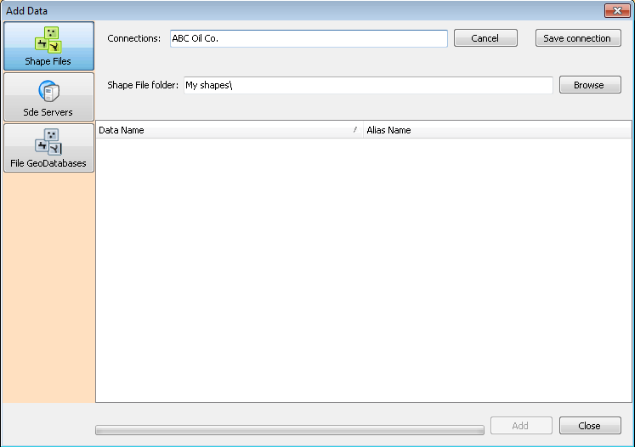
Create a connection to a local or networked database of shapefiles or File Geodatabase layers. The resulting files appear in the Layer Legend under the My Layers node.
Also, attach a saved query (.xmlquery) to the map as a new layer. Queries appear under the My Queries node.
Once these layers are attached to the map, click Layers > Symbolize to change their display scales and map symbols.
For details on setting the fields upon which you can inspect, see Related topics below.
To add a shapefile or File Geodatabase layer to the map
1. With the My Layers node selected in the Layer pane to the left of the map, right-click the My Layers node and from the context menu, click Add.
The Add Data dialog box appears.
2. Select whether to specify a mapping to a folder that contains shapefiles or a connection to an SDE server of shapefiles by clicking Shapefiles, SDE Servers, or File GeoDatabases.
3. Type the name by which to identify the mapping or connection in the Connections box and then click Edit Connection.
4. Depending on whether you're specifying a mapping to a folder or a connection to an SDE Server, do one of the following:
Shapefiles - click Browse and navigate to the folder that contains the shapefiles.
SDE Servers - type connection details for the SDE Server. Your server administrator can provide these details.
File GeoDatabases - type connection details for the server. Your server administrator can provide these details.
5. Click Get Layers.
The available shapefiles available from the connection established above appear in the display pane.
6. Select the files to add to your map (SHIFT+Click or CTRL+Click for multiple selection), and then click Add.
The imported files appear in the My Layers pane in the Layer pane to the left of the map in EDIN.
You may need to zoom the map to see the new layer. EDIN warns you if the datum in the imported layer differs from the underlying datum in your EDIN map. The datum of your imported layer appears in the file DefaultProjection.prj.
To add a saved query to the map
1. Using the Map window, select My Queries, and then from the Layers menu, click Add  .
.
The Choose query layer dialog box appears.
2. Browse to and select the .xmlquery file to add.
3. Click Open.
To declutter your map, after attaching your query results to the map, turn off visibility ( ) for the layer on which the query is based so that only items returned by the query appear on the map.
To remove a shapefile or a saved query attached to the map
1. Using the Map window, in the Layer Legend, select the user layer to remove.
2. From the Layers menu, click Delete  .
.
This only removes the copy attached to the map, not the copy saved to disk.
| Editing shapefile attributes | Editing shapefile attributes |
| Viewing data on the Inspect bar |