 ), use the shortcut menu to send an annotation in front of or behind other annotations.
Use the Annotation toolbar and the shortcut menu to move or copy annotation elements (points, lines, rectangles, circles, polygons, ellipses, and text) on maps. When the Select annotation tool is active (), use the shortcut menu to send an annotation in front of or behind other annotations.
The following tasks are covered in this topic:
| Copy or cut and paste annotations to a new map | Change the location of the center point of a circle |
| Copy annotations | Drag annotation elements to a new location |
To drag annotation elements to a new location
1. From the Map menu, point to Annotation, and then click Select .
2. Click the annotation to move.
3. Drag the annotation to the new location.
To change the location of the center point of a circle
1. From the Map menu, point to Annotation, and then click Select .
2. Click the circle to move.
3. Right-click the map and from the shortcut menu, click Properties.
The Properties: Dimensions dialog box appears.
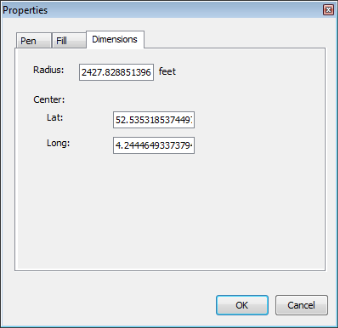
4. Click the Dimensions tab.
5. Type a new location for the center point of the circle, and then click OK.
1. From the Map menu, point to Annotation, and then click Select .
2. Click the annotation to copy.
3. Right-click the map and from the shortcut menu, click Copy.
4. Right-click the map and from the shortcut menu, click Paste.
The annotation is pasted in the center of the visible map.
To copy or cut and paste annotations to a new map
1. From the Map menu, point to Annotation, and then click Select .
2. Click the annotation to cut or copy.
3. Right-click the map, and from the shortcut menu, click Copy
OR
Click Cut to alter the original annotation instead of a copy of it.
4. Open a new or saved map in which to paste the annotation.
5. Right-click the map and from the shortcut menu, click Paste to insert the annotation in the center of the visible map
OR
Click Paste to Original Location to insert the annotation at the same lat long position as on the original map.
When pasting multiple annotations at once, if you click Paste to Original Location, the pasted annotations retain their original spatial relationship. If you click Paste, the annotations are all pasted in a stack in the center of the Map window.
| Resizing map annotations | Changing map annotations |
| Editing vertices of annotation polygons | Deleting map annotations |