 ) enables you to pin particular files so that they remain in the list of recently used files instead of being replaced by more recently accessed files. You can also browse for a file when it does not appear in this list.
Using the left pane of the IHS EDIN Desktop toolbar, launch either a new Map window or Query Editor, or open a saved file. Files saved using the Map window can be opened using only the Map window. Files saved using Query Editor or an Output window (Browse, DataCard, Graph, Export ) can be opened in Query Editor or in any Output window.
When Open is selected in the left pane, up to 20 of the most recently accessed map or query files appear in the right pane. Push-pin functionality () enables you to pin particular files so that they remain in the list of recently used files instead of being replaced by more recently accessed files. You can also browse for a file when it does not appear in this list.
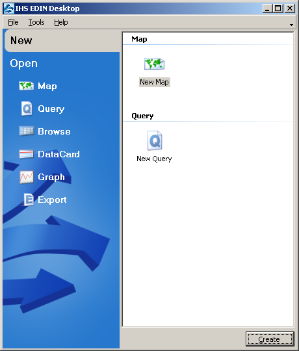
When launching EDIN, if all of the available licenses are in use, the user name and machine name of users currently logged in to EDIN appears. You may inquire whether one of them can close their session.
To launch Map, Query Editor, and Output windows
To launch a new Map window or Query Editor, using the left pane, click New and then in the right pane click either New Map  or New Query
  .
.
OR
from the File menu, point to New, and then click either Map or Query .
1. To display the results of a query or map previously saved to disk, using the left pane, click Map, Query, or one of the Output windows (Browse  , DataCard
  ,
Graph
,
Graph  , Export
  ).
).
OR
from the File menu, point to Open, and then click Map or Query. You can also open a query previously saved to disk using any Output window (Browse , DataCard ,
Graph , Export ).
2. Either double-click the desired file in the Recent Files pane, or for a file that hasn't been accessed recently, click More , navigate to the file, and then click Open.
Up to 20 map and 20 query files appear in the Recent Files pane of the EDIN Desktop toolbar. The name of files that are opened replace the name of the least recently accessed files in the Recent Files pane. To ensure that the name of a file that appears in the Recent Files pane isn't replaced, click the push-pin ( ) that appears to the left of a file name.
File names with an active push-pin () aren't replaced by names of more recently accessed files.
Pinning a file doesn't change the order in which it appears in the Recent Files pane. File names appear in the order in which they were accessed from most to least recent. The Recent Files pane is updated with files from your current session as you save them.
Map and Query files deleted from disk using Windows Explorer still appear in the Recent Files pane until eclipsed by the name of a more recently accessed file.
| Customizing the interface | About the Map window |
| About Query Editor | About DataCards |
| About graphs | About the Browse window |
| About exports | |