 in the main toolbar.
 Select a template with pre-defined columns to apply to the display pane as is, or modify which columns appear and their order to create a unique user template. Create an unlimited number of user templates for each data type. The template currently in use or any column reordering you've applied in the current session is the layout that appears in the Microsoft Excel spreadsheet when you export a Browse List by clicking Send to Excel in the main toolbar.
Templates appear in the Template drop-down list sorted alphabetically with the names of pre-defined templates colored black and the names of user-defined templates colored blue.
The pre-defined templates from which you can select depend on the data types selected in Data Navigator (CTRL+CLICK or SHIFT+CLICK to select multiple data types in Data Navigator). The user templates from which you can select depend on both the data types selected in Results Navigator and the data type that was selected when you originally created the user template.
Instead of customizing templates, you can show and hide columns that appear in the display pane, but unlike user templates, these changes will be lost when you close the current session.
To edit display templates
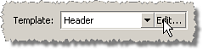
1. Select a data type in Data Navigator with which the user template you create will be associated, then beside the Template drop-down list, click Edit.
The Template Editor dialog box appears.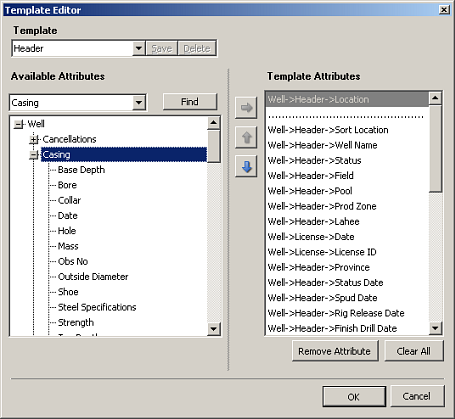
2. Select the name of the template to modify in the Template drop-down list.
The first data item that appears in the Template Attributes pane is the left-most column in the Browse list and the last item is the right-most column.
3. Do any of the following:
To add data items as columns to a user template, in the Template Attributes pane on the right, select the data item (column) before which to insert a new data item and then in the Available Attributes pane on the left, select the data item to add and click  .
.
To locate attributes in the Available Attributes pane to add to the Template Attributes pane, using the box that appears above the Available Attributes pane, type words or letters that appear in the attribute name and then click Find or press ENTER. Click Find or press ENTER repeatedly to scroll through similar attribute names.
To limit data redundancy, Enerdeq may prevent multiple columns with one-to-many relationships from occupying the same row. When such a relationship is prevented, the Template Attributes pane refreshes and previously expanded branches collapse.
When you add a data item to the Template Attributes pane, it remains in the Available Attributes pane too. You can add it to the Template Attributes pane in multiple locations so that it recurs at strategic intervals in the Browse list.
The dotted line near the top of the Template Attributes pane separates any data items above it as fixed columns in the Browse list. Data items below it remain part of the horizontal scrolling portion of the Browse list.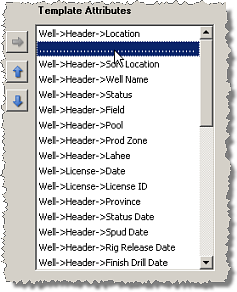
To remove data items from the current template, in the Template Attributes pane to the right, select a data item to remove (CTRL+CLICK or SHIFT+CLICK for multiple selection) and then click Remove Attribute.
To remove all the data items, click Clear All.
To change the left-to-right order in which one or more columns appear in the Browse list, select the data items in the Template Attributes pane (SHIFT+CLICK or CTRL+CLICK for multiple selection) and click  or
or  . To move just one data item, simply drag it up or down to the desired location.
4. Either click Save to create a user template with the same name as a pre-defined template (this won't overwrite the pre-defined template), or type a different name in the Template box first, and then click Save. If you're modifying a user template, you must rename it to avoid overwriting the original.
You can only delete user templates, not pre-defined templates. Display the Template Editor dialog box using the process above, select the template to delete from the Template drop-down list, and then click Delete to the right of the Save button.
| Navigating Browse lists | Sorting Browse list columns |
| Moving and resizing Browse list columns |