 .
.Export well data in P297, P298, Z-Map, Shapefile, GeoGraphix, Excel, and Petrel format. All exports but Petrel and Excel include spatial data. GeoFrame exports include spatial data, but don't include well data.
P297 and Petrel export formats use codes to identify details about individual wells. Click to display a P297 reference table or Petrel reference table with which you correlate Enerdeq well codes when importing Enerdeq maps into programs such as SMT® Kingdom or Petrel. Z-Map exports include points, polygons, and lines in a zip file of multiple .dat files. For Z-Map exports the coordinate system can't be changed.
To export well data
1. Depending on whether you want to export data items currently displayed in a window or from a saved query, do either of the following:
From an open window - with the items to export selected in either the Query Editor, the Map window, or an Output window, from the Tools menu of that window, click Export .
From a saved query from the Tools menu of an existing window, click Export , or using the IHS Enerdeq Desktop toolbar from the File menu, point to Open, and then click Export to launch an Export dialog box.
Using the Export dialog box, from the File menu, click Open and browse to and open the saved query.
The Export dialog box appears.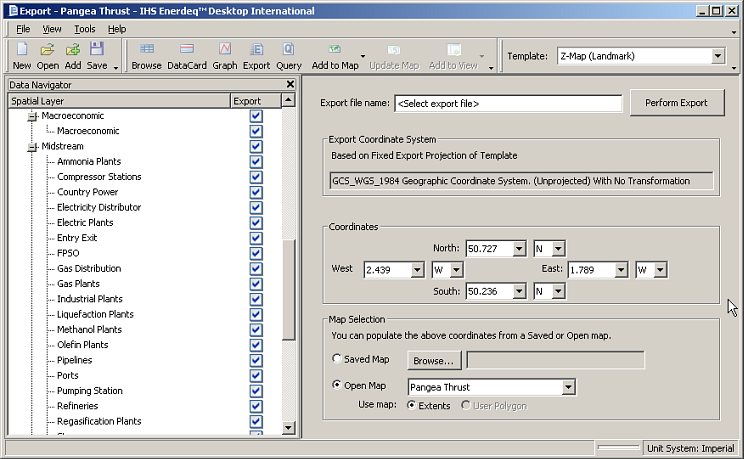
2. From the Template drop-down list, click the desired export type.
All wells are exported, regardless of whether they're specifically selected in Data Navigator. To prevent a well from being exported, select it in Data Navigator, and then click Remove Results 
OR
Using Data Navigator, select only the items to export, click Export to display them in a new Export window, and then export those results using the new Export window.
3. Click Perform Export and browse to a disk location.
If exporting to Petrel, or Shapefile (ESRI) format, further select whether to change the projection.
4. Type a name by which to identify the exported file, and then click Save.
5. Once the export completes, launch the desired application and open the file you saved above.
| Exporting data to Excel |