 To export spatial data in Google Earth or shapefile format
Export the spatial data in ESRI shapefile™ or Google Earth™ format using either a map that's currently displayed in the Map window, or an Enerdeq map that's saved to disk. For maps saved to disk, the exported data is based on the map extents. For maps that are currently displayed in a Map window, you can further limit the data to export by drawing a polygon in the Map window, and then export only the data within that polygon.
Files required for shapefiles are saved in a compressed folder. Google Earth exports result in a single .kmz file.
Spatial data is exported in WGS84 format.
To export spatial data in Google Earth or shapefile format
1. Using either the
Map window (to base the export on an open map), or Query
Editor or an Output window (to base the export on a map
that's saved to disk), from the Tools menu, click Export  .
.
The Export dialog box appears.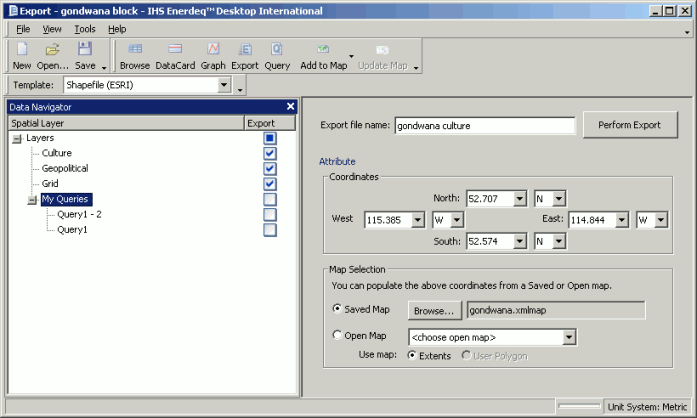
2. From the Template drop-down list, click either Shapefile (ESRI) or Google Earth.
3. In the Map Selection pane, select either of the following:
 Saved
Map, click Browse, and
then navigate to and select the Enerdeq map file upon which to base the
export.
Saved
Map, click Browse, and
then navigate to and select the Enerdeq map file upon which to base the
export.
Open
Map, from the drop-down list select a map that's currently displayed
in a Map window and select either Extents (to use the current Map window extents) or Polygon (to export everything within a polygon you drew on the map).
 Tip: For saved
maps, and instead of drawing a polygon on an open map, you can reduce
the current export extents by specifying the lat long of the desired extents
in the Coordinates area, providing the lat long you specify fall within
the overall extents of the selected map.
Tip: For saved
maps, and instead of drawing a polygon on an open map, you can reduce
the current export extents by specifying the lat long of the desired extents
in the Coordinates area, providing the lat long you specify fall within
the overall extents of the selected map.
All licensed spatial layers appear in Data Navigator with the currently displayed layers in either the open or saved map selected for export.
Select additional spatial layers to export using Data Navigator
even if they're not active on the current or saved map.
4. Using Data Navigator, select the data items to export.
5. Click Perform Export, browse to a disk location in which to save the files, and then click Save.
