 .
.Query Editor can be launched from numerous windows in Enerdeq by pressing .
When you launch Query Editor from another window, it's populated with the data type and individual data items selected in that window. For example, if you launch Query Editor from a Browse window in which you've selected several wells, the identifiers for those wells appear in the Query Editor Current Criteria pane, and the matching data type and attributes are selected in the Query Data Type and in the Well Attributes panes.
You can add additional data types and attributes to this query to further refine your search.
 To build a query
1. Depending on the location from which to launch Query Editor, do one of the following:
 Main Application toolbar, from the File menu point to New, and then click Query .
Map window, with the data to query either
visible or selected (either by clicking or using a polygon), from the
Tools menu, click Query
.
Output window (Browse, DataCard, Graph,
Export), select the data groups and specific data items in Results
Navigator to add to the query, and then from the Tools menu, click Query .
If you're already using Query Editor and
want to open a second instance, select the data groups and specific attributes
in the Results pane to add to the new query, and then from the File menu, click New  .
.
2. In the Query Data drop-down list, select the type of data to query (field, gas plant, pipeline, well, etc).
 Tip: You can build a single query that searches multiple data types by defining
attributes for each data type one at a time.
Tip: You can build a single query that searches multiple data types by defining
attributes for each data type one at a time.
The attribute list on the left side of the Query Editor window updates based on the data type selected above.
3. To locate attributes
to add to your query, either double-click the parent name, click  , or type the desired attribute name in the Find box, and then
either click Find or press ENTER.
Click Find or press ENTER repeatedly to scroll through similar attribute names.
, or type the desired attribute name in the Find box, and then
either click Find or press ENTER.
Click Find or press ENTER repeatedly to scroll through similar attribute names.

The features in the criteria selector pane right of the attribute selector list update to correspond to the attribute selected above. For example, if you select an attribute that uses a date field, date selection controls appear in the criteria selector pane as depicted in the adjacent graphic.

4. Type or select the desired criteria, and then click Add to attach your criteria selection to the current query with an "And" logical operator.
By default, Enerdeq searches only the latest Bid, Block, Contract and Applications, and Open Areas data. To search historic data as well for these types, click Include Historic.
For certain data types (Country, Region, Participant, Basin, and Lat/Long), from the drop-down list on the Add button, you can click either Add to Selected to display the Add criteria to chosen queries dialog box where you select the attributes to which to add the criteria, or select Add to All, which automatically adds the criteria to all applicable data types. The query criteria automatically applies to any Region, Country, Basin, Participant, or Grid/Location attributes.
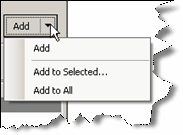
If you're modifying existing criteria, Apply appears instead of Add and when you click it, the modified criteria replace the original criteria.
Tip:
Depending on the attribute selected above, you may be able to type
either "?" as a single-character wildcard or "*" as
a multiple-character wildcard. When an attribute supports wildcards, instructions
for using them appear in the Criteria Selector pane.
To
add additional criteria with an "And" logical operator so that
your query returns only results that match both statements, repeat steps
3 and 4 above.
To
add additional criteria with an "Or" logical operator so that
your query returns any results that match either statement, select an
existing criteria string in the Current Criteria pane, type different
criteria in the Criteria Selector pane, and then click Append.
To
change the current criteria, select the statement in the Current Criteria
pane and click Edit  . Type your changes in the Criteria Selector pane, and then
click Apply.
. Type your changes in the Criteria Selector pane, and then
click Apply.
To remove a statement from the Current Criteria pane, select it and then click Clear  .
.
5. Click Get Count to determine the number of items each data type you've selected in the Results pane will retrieve (CTRL+CLICK or SHIFT+CLICK for multiple selection).
This enables you to quickly determine the volume of results and modify your query string before actually running it.
6. Either display the query results in a Map or Output window, or save them as a single file. For details, see Related Topics below.
