Production Editor
 Click to see Subtopics:
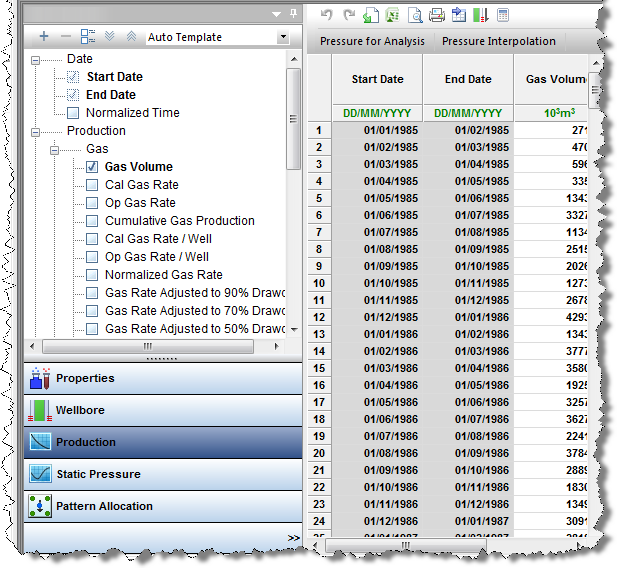
With the Production Editor (located within the Editors pane), you can manipulate imported production and flowing pressure data, and create new production records. See Production Editor Tasks for additional information.
Note: For multilayer wells, see Multilayer Wells: Production Editor Differences.
User Interface
The Production Editor consists of the following parts:
Selection Tree
The selection tree has production / injection, flowing pressure, and other data reported by date / time. To select data in the tree structure, select the checkbox for the appropriate dataset. The data is displayed in a table. Deselect datasets to remove them from the table.
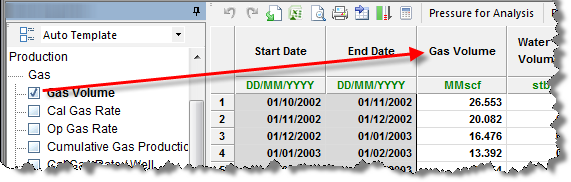
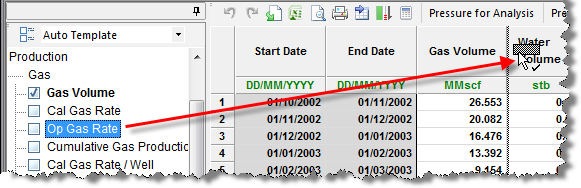
You can also add data to the table by clicking the dataset name and dragging it to its desired location.
See Dataset Tasks and Category Tasks for additional information.
Grid
The grid (or table), located on the right-side of the Production Editor, displays the selected entity's production data. By default, the grid displays the Start Date and End Date columns, as well as production volumes for oil, water, and gas (if data is available). The Start Date column cannot be moved or removed from the grid. All other columns can be shown / hidden by selecting / deselecting the parameter's name in the selection tree, or by moving the parameter within the grid.
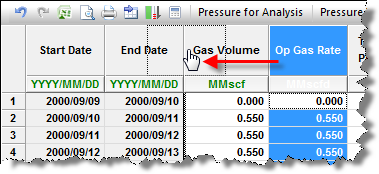
Move a column by dragging the header to the desired location.
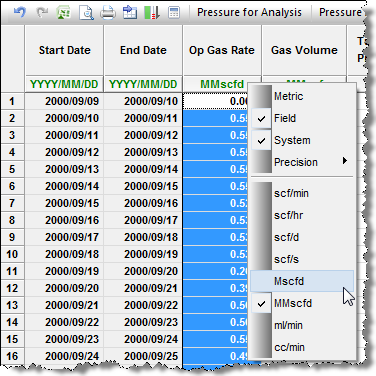
Change units by clicking the unit sub-header and selecting from a list. You can also set precision.
Fields with a white background can be edited by typing within the field, or pasting from another source (e.g., Excel).
Note: If you select multiple wells, or a well group in the Entity Viewer, you cannot edit any of the fields. Gray fields (including cumulative production, ratios, and aggregates) are read-only.
To remove a row from the grid, right-click the row number and select Remove Rows.
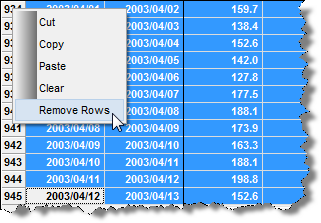
Note: You can only remove rows at the end of production.
Pressure for Analysis
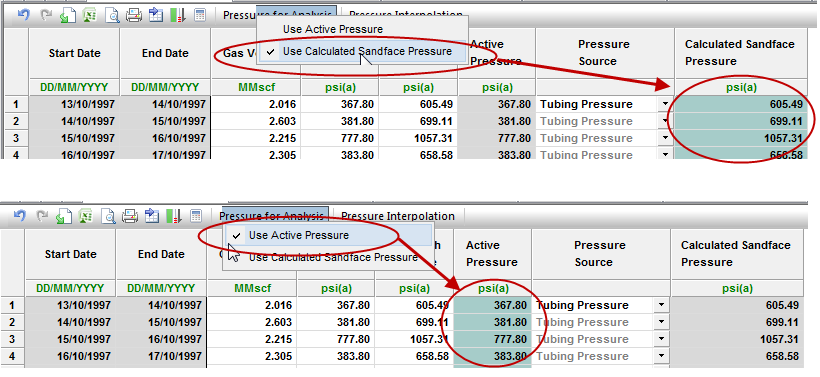
With the Pressure for Analysis option, you can specify which flowing pressure will be used in any analyses with calculations that require this value (e.g., typecurves, analytical models, etc).
The Pressure for Analysis option is found in the toolbar of the Production Editor grid.
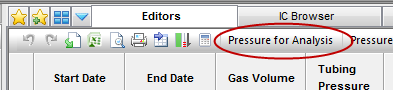
When selected, there are two options to choose from:
1. Use Active Pressure – uses the pressure that has been set under the Pressure Source column of the grid (i.e., casing, tubing, or run depth) as the flowing pressure in analyses. This option is useful if you have measured a run-depth pressure and therefore do not need to calculate an equivalent sandface pressure.
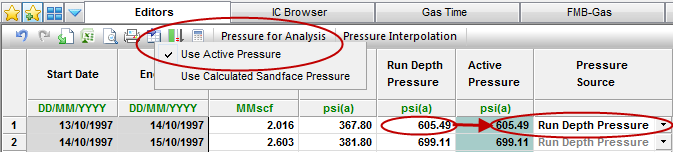
Note: If active pressure has been set to a wellhead pressure (e.g., tubing pressure), and "Use Active Pressure" has been selected, all analyses will use the tubing pressure as the flowing pressure in calculations. This could result in significant differences in results compared to using a calculated sandface flowing pressure. If run-depth pressures have not been measured, we recommend calculating a sandface pressure and setting Pressure for Analysis to "Use Calculated Sandface Pressure".
2. Use Calculated Sandface Pressure – uses the calculated sandface pressure in the Production Editor for flowing pressure in analyses. This is the default selection.

Note: A valid wellbore is needed to calculate sandface pressures.
The pressure being used in analyses will be highlighted in turquoise.
Templates
After you have customized the grid display to your liking, you can save your configuration as a template for re-use later. See Template Tasks for additional information.
Multilayer Wells: Production Editor Differences
Single-layer wells vs multilayer wells are contrasted below:
- The Production Editor is available to the well entity of a multilayered well, and it is also available to layer entities.
- Layout changes for multilayer wells: None
- Functionality changes for multilayer wells: The Production Editor for a Layer entity is read-only, because the production data is calculated from the well entity’s production data and the well’s multilayer allocation editor’s allocation factors.