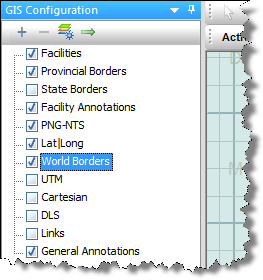
Changing the Front-to-Back Display Order
Note: This feature is especially important for bubble maps, flags, and image layers.
By default, your layers are displayed with Project Layers being drawn on top of the GIS map, followed by Grid Layers, and Border Layers. This corresponds to Project Layers being at the bottom of the tree and Border Layers being at the top of the tree.
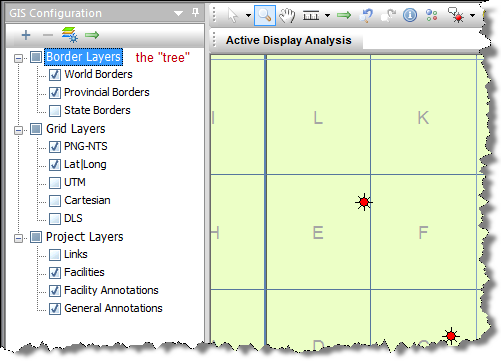
To change your display order, drag the category in the tree to your new location. In the example below, Border Layers have been dragged to the bottom of the tree (that is, the top layer of the GIS map).
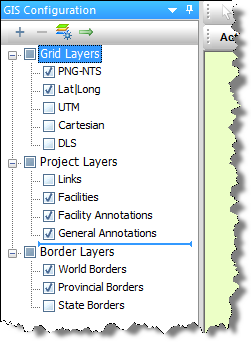
This display order would hide your facilities, unless you've set a fill transparency in the Customize Shapefile Drawing dialog box. To set this, right-click one of the borders and select Customize Shapefile Drawing.
To change your display order without the limitations of categories, right-click the tree and deselect Group Layers by Type.
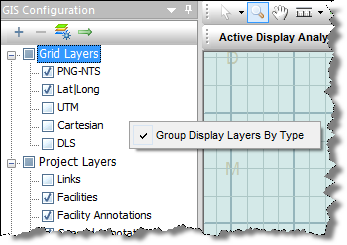
You can now drag-and-drop layers within a flat hierarchy structure.