Archiving Reserve Evaluations
With archiving, you can view a previous year’s assigned reserves while updating the latest year's values. You can also convert reserve assignments to a read-only status, so that the previous years are not affected by updates in production. Archiving reserve evaluations equates to adding reference dates in time.
To archive reserve evaluations:
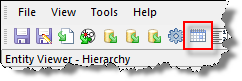
1. Click the Reserves
Settings icon ( ) on the main toolbar.
Or, click the
Tools menu and select Reserves
Settings....
The Reserves Settings dialog box opens.
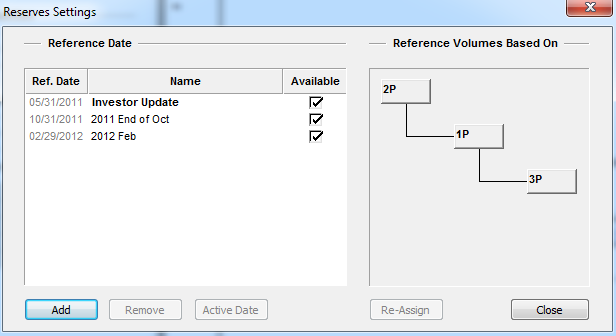
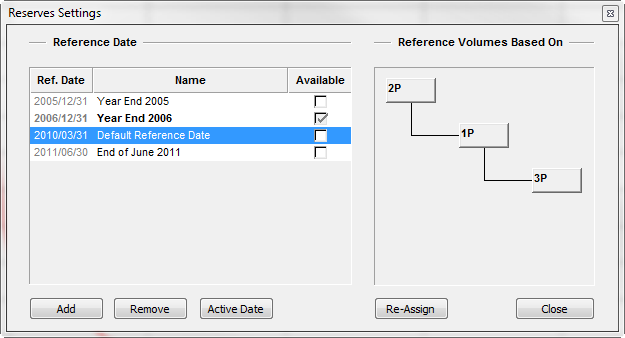
Reference dates are organized in chronological order from the top down. Each reference date has a checkbox in the Available column. Selecting this box displays the analyses that use this date; deselecting the box hides those analyses.
The active reference date (i.e., the date a reserves evaluation is based upon) is displayed in bold. When the active reference date is selected, the Active Date button and the Available checkbox are disabled. Analyses associated with the active reference date are displayed in red on the analysis plot. By default, the most recently created reference date automatically becomes the active date.
2. To archive reserve evaluations (change the active date), select a reference date from the list, and click Active Date. (If the active reference date is removed, the reference date nearest that point in time becomes the active date.)
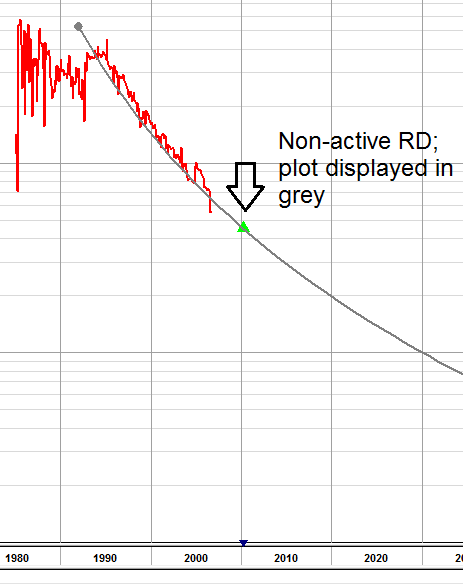
Archived analyses associated with a non-active reference date are displayed in gray on the analysis plot, and the parameters in the Analysis Manager pane cannot be modified.
3. To hide analyses associated with a non-active reference date, either deselect the checkbox beside the analysis name in the Analysis Manager pane, or deselect the checkbox under the Available column in the Reserves Settings dialog box.