Removing a Reference Date
To remove a reference date from your project:
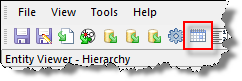
1. Click the Reserves
Settings icon ( ) on the main toolbar.
Or, click the
Tools menu and select Reserves
Settings....
The Reserves Settings dialog box opens.
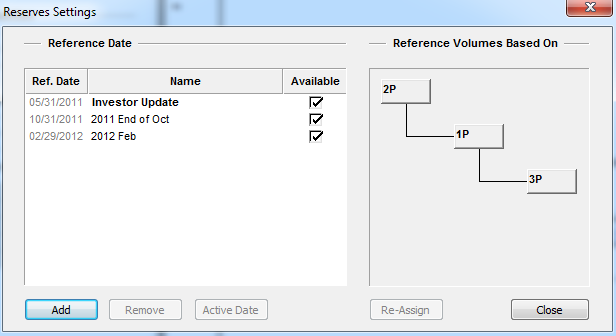
2. Select the Ref. Date you want to remove.
3. Click the Remove button. A warning message opens (e.g., "the action selected may take several minutes to complete").
4. Click OK. A warning message opens prompting you to confirm your decision.
Note: Deleting a reference date from your project removes all analyses associated with that date.
5. Click OK. The reference date is removed.