Exporting for IHS WellTest
If you want to bring wells from IHS Harmony into IHS WellTest, you need to export these wells from your Harmony project.
Note: This procedure applies to Harmony projects saved in Harmony 2016v2 or later. For Harmony projects saved in Harmony 2016v1 or earlier, select the Open Harmony Project option in WellTest (on the splash screen or on the File menu) in order to bring wells from Harmony into WellTest.
To export for IHS WellTest:
1. Open your Harmony project.
2. Click the File menu and select Export to WellTest.
Note: If you made some changes after opening the project, the Harmony project has to be saved prior to the export, for the exported file to include all the changes.
3. In the Entity Viewer, select the wells you want to export; then click the Start Export button.
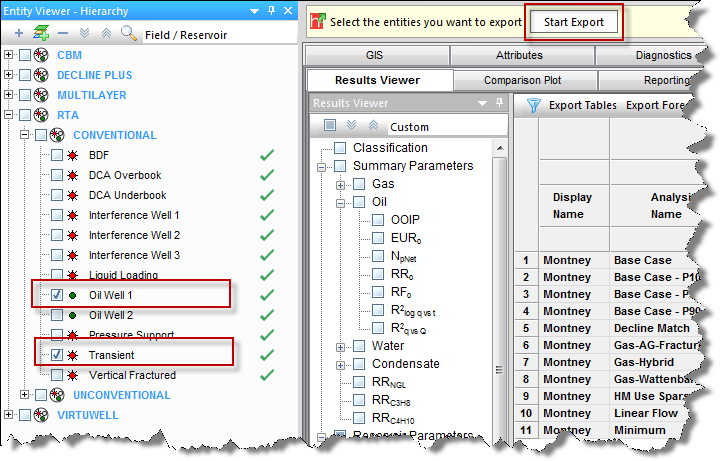
You can export several wells to the same file; however, you are only able to open one well at a time in IHS WellTest.
4. In the Save As dialog box, browse to your preferred location and enter a filename; then click Save.
5. Open IHS WellTest.
6. Click Open Existing File and select Open File. Navigate to your previously saved .hmexp file.
(Or, you can click the File menu and select Open after opening a WellTest project.)
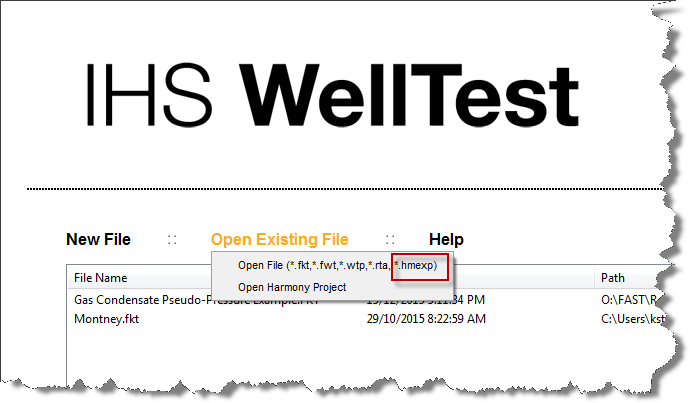
7. If your .hmexp file contains more than one well, the Well Selection dialog box opens. Select the well you want to open in WellTest, and then click Open.