Exporting Forecasts
To export forecasts:
1. Open a Harmony project that contains data.
2. Click the Results tab; then Results Viewer.
3. Click Export Forecasts.
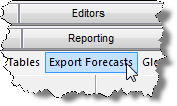
Note: Clicking the Export Forecasts button exports all current shown analyses in the Results Viewer as a .csv file. You can customize the appearance of the exported data via the selection tree that includes Attributes, Volumes, and Rates. You can also set your forecast data to either a monthly or yearly format.
The Export Result Forecasts dialog box opens.
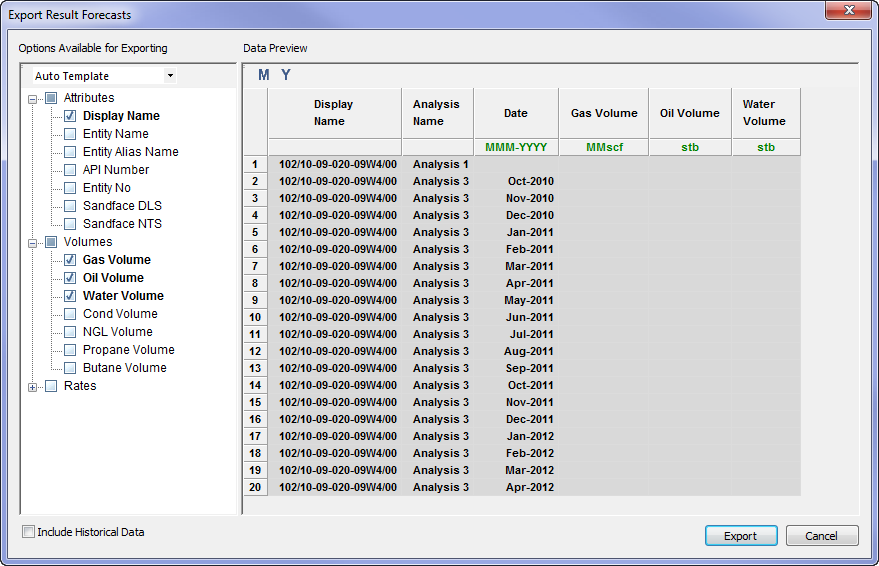
4. Select the attributes you want to include in the export. Selected attributes are displayed in the table.
- Click M to display dates by month. Click Y to display dates by year.
- Select Include Historical Data to include production data with your forecast.
5. Click Export.
The Save As dialog box opens.

6. Browse to your file's location; enter a filename; then click Save.
The file is saved and the dialog box closes.