Importing from IHS FieldDIRECT
By connecting directly to IHS FieldDIRECT, you can import wells, including their production and pressure data, directly into Harmony.
To import wells from IHS FieldDIRECT:
1. Click the File menu and select Import from IHS, FieldDIRECT.
The FieldDIRECT Import dialog box opens.
2. Enter your username and password, and then click the Sign in button.
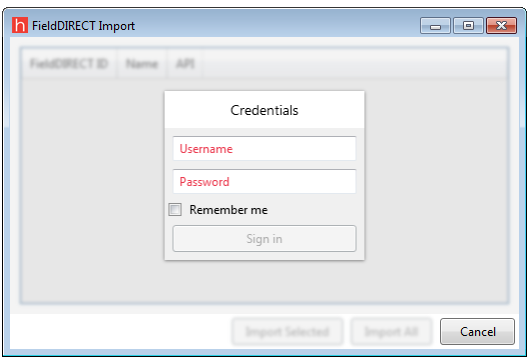
3. (Optional) To save your login credentials, click the Remember me checkbox.
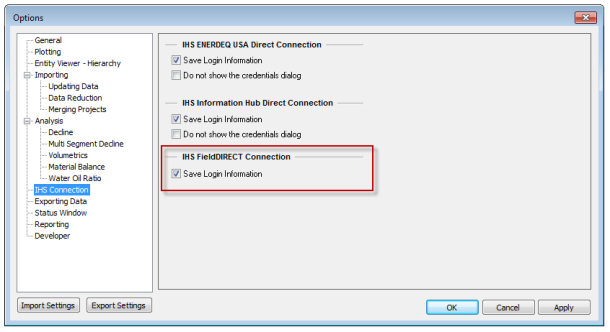
Or, in the Options dialog box (Tools menu, Options), click the IHS Connection node, and then click the Save Login Information checkbox.
After you enter correct credentials, all the wells stored in FieldDIRECT under your username are displayed.
4. (Optional) To sort wells by FieldDIRECT ID, Name, or API, click the header of the corresponding column. A small arrow in the column heading indicates if the wells are sorted.
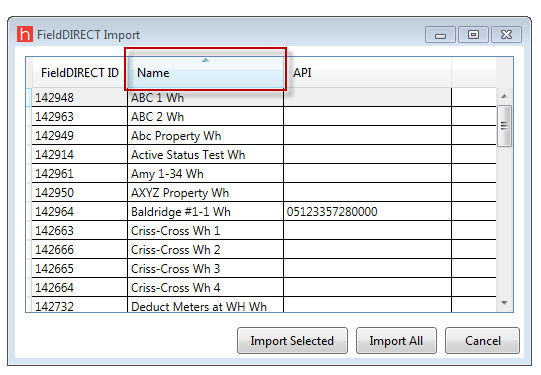
5. Select the wells you want to import, and then click the Import Selected button.
Or, to import all the wells, click the Import All button.
The Link Imported Wells to Existing Wells dialog box opens.
6. Map incoming wells to existing wells.
Note: The Link Imported Wells to Existing Wells dialog box is not displayed if the Display Link Imported Wells to Existing Wells option is deselected. (This option is located in the Options dialog box, under the Importing \ Imported Well Linking node.)
After the import is finished, the following data is brought into Harmony from FieldDIRECT:
- production volumes for oil, gas, and water
- tubing pressures and casing pressures
- Well Name, API, Reservoir, Field, Formation
- FieldDIRECT ID — this attribute is used to map wells, if you are updating wells from FieldDIRECT later