Exporting and Importing Workflows
 Click to see Subtopics:
All of the workflows that exist in a Harmony project can be exported as a single file, then imported for use on other computers. (This file also contains plot templates.)
Note: Workflows are computer-specific, not project-specific. Modifications to workflows that you make in one project will be reflected in all subsequent projects that you open.
Exporting Workflows
To export your workflows as a file:
1. Click Tools, Export Templates / Workflows.

The Save As dialog box opens.
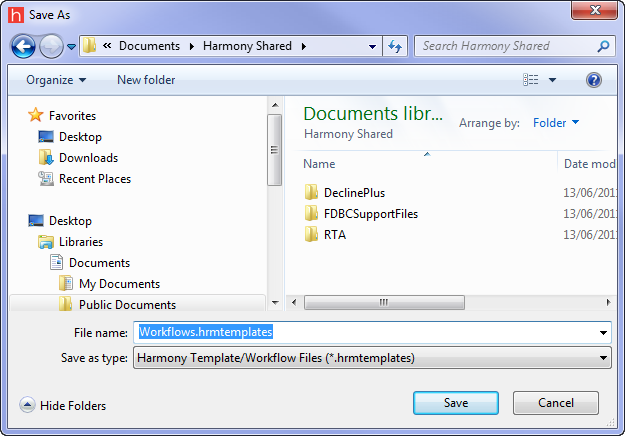
2. Specify a name and location for your Harmony Template / Workflow file; then click Save.
Importing Workflows
1. Click the Tools menu and select Import Templates/Workflows

The Open dialog box opens.
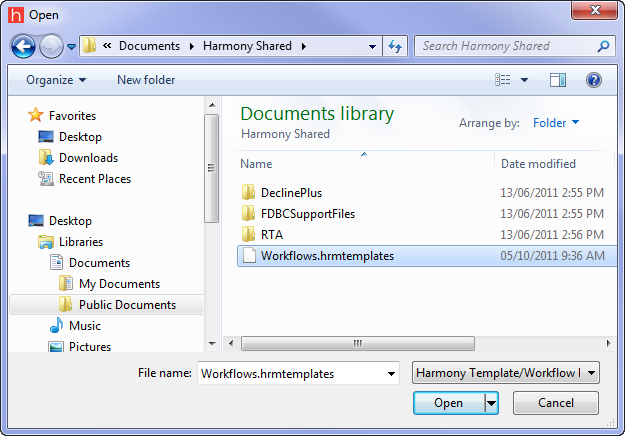
2. Browse to your file (*.hrmtemplates); then click Open.
The Choose Template/Workflow Import Behavior dialog box opens.
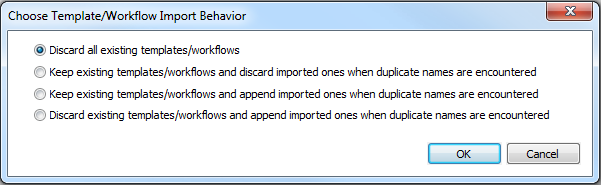
3. Select the appropriate option and click OK. (If you decide to keep existing templates, your templates / workflows will be merged.)
4. View the Status Window to confirm if your import / merge was successful. (By default, the Status Window is displayed at the bottom of the Harmony user interface.)