Creating a DSN for an Oracle Database
To create a DSN for an Oracle database:
1. Open the Windows Control Panel.
2. Double-click Administrative Tools.
3. Double-click Data Sources.

The ODBC Data Source Administrator dialog box opens.
Note: For IHS Harmony, you must use the 32-bit version of the ODBC Administrator Tool. If you are running 64-bit version of Widows, the 32-bit version of ODBC Administrator tool is located at C:\Windows\SysWOW64\odbcad32.exe.
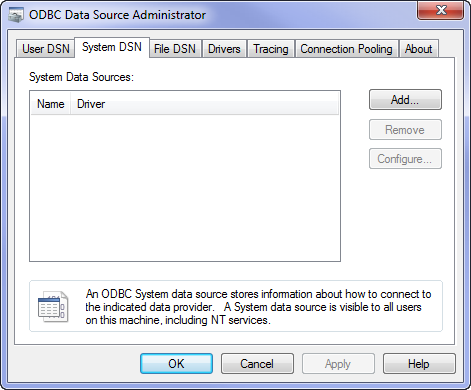
4. Click the User DSN tab (for a computer used by only one user), or the System DSN tab (for a computer used by multiple users), then click Add.... The Create New Data Source dialog box opens.
5. Select Oracle's native driver; then click Finish.

The Oracle ODBC Driver Configuration dialog box opens.

Note: We recommend that you contact your IT department to obtain the server name, user ID, and password. After all the relevant information has been added, be sure to test your connection with either Microsoft SQL server or Oracle. Once the DSN is created and the test connection is successful, it is ready for use by the Database Connection Tool.