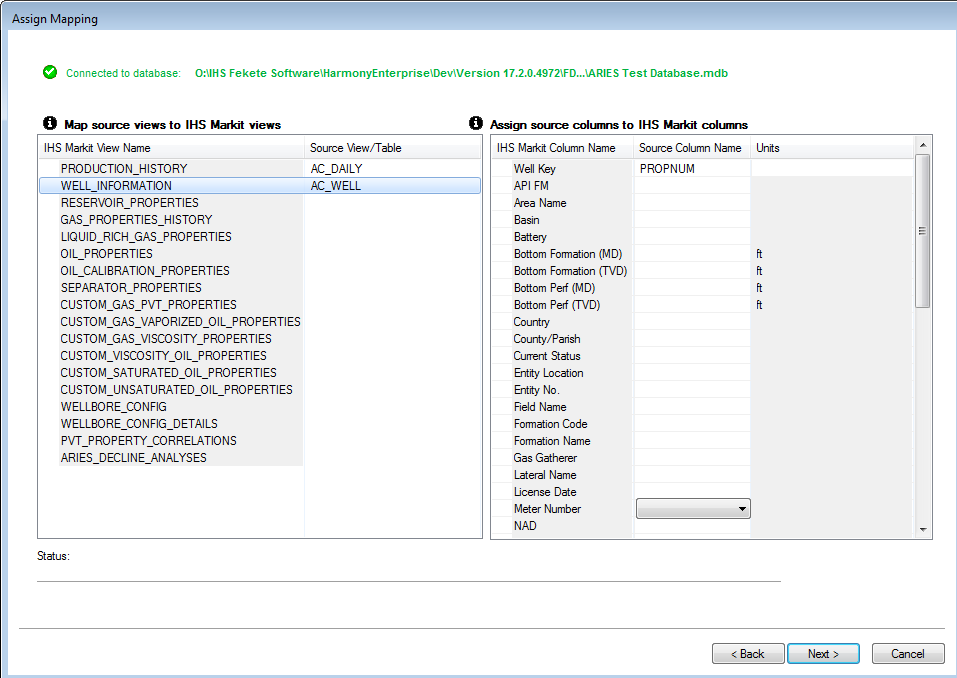
Assign Mapping dialog box
This dialog box is commonly used when you import well data from a database. You can import well production, attributes, fluid properties, wellbore configurations, and declines (Aries only). Mappings for each connection are saved and shared with all users for the current Harmony Enterprise database.
|
Note:
|
The Source columns shown below are for the table in your source database. The Next button is disabled until all of the mapping errors are corrected. The view definitions that outline the data fields that can be imported, and the expected format, are summarized in the View Definition spreadsheet. By default, this spreadsheet is located as follows: C:\Program Files (x86)\IHS Markit\IHS Harmony Enterprise <versionX.X>\FDBCSupportFiles\IHS. |
Views:
To import data from your internal database into Harmony Enterprise, views / tables in your database (Source View / Table) must be mapped to the corresponding Harmony Enterprise view (IHS View Name).
- ARIES_DECLINE_ANALYSES — supports Arps’ decline analyses formatted from Aries.
- PRODUCTION_HISTORY — historical production rates and volumes including custom datasets. Custom datasets must be created in Harmony Enterprise before they can be imported.
- WELL_INFORMATION — well attributes and reservoir properties including custom attributes. Custom attributes must be created in Harmony Enterprise before they can be imported.
- RESERVOIR_PROPERTIES — general initial reservoir properties, such as initial reservoir pressure, temperature, and saturations.
- GAS_PROPERTIES_HISTORY — gas gravity and produced gas composition. Can accommodate multiple PVT test results over time, or a single result.
- LIQUID_RICH_GAS_PROPERTIES — condensate gravity along with CGR and recombined gas rate.
- OIL_PROPERTIES — oil gravity, bubble point pressure, and initial GOR.
- OIL_CALIBRATION_PROPERTIES — calibration pressure, temperature, formation volume factor, compressibility, and viscosity.
- SEPARATOR_PROPERTIES — temperature and pressure in the separator.
- CUSTOM_GAS_PVT_PROPERTIES — custom gas formation volume factor table.
- CUSTOM_GAS_VAPORIZED_OIL_PROPERTIES — custom vaporized oil ratio table.
- CUSTOM_GAS_VISCOSITY_PROPERTIES — custom gas viscosity table.
- CUSTOM_VISCOSITY_OIL_PROPERTIES — custom oil viscosity table.
- CUSTOM_SATURATED_OIL_PROPERTIES —oil formation volume factor and solution gas oil ratio custom tables below bubble point.
- CUSTOM_UNSATURATED_OIL_PROPERTIES — oil formation volume factor and solution gas oil ratio custom tables above bubble point.
- WATER_PROPERTIES — water gravity, salinity, viscosity, compressibility, formation volume factor, and solution gas water ratio.
- WELLBORE_CONFIG — configuration name, date and ID, as well as datum, flow path, and pressure loss calculation correlation.
- WELLBORE_CONFIG_DETAILS — top and bottom casing depths, tubing and perforations, along with casing and tubing diameters. Deviation surveys and detailed temperature profiles are also defined here.
- PVT_PROPERTY_CORRELATION — sets all correlations used in the Properties editor along with the Gas Type.
Columns:
After mapping your views / tables to the Harmony Enterprise views, the columns within these views must be mapped. For numeric columns that have been mapped, specify the units that these values use in your database.
Errors and minimum requirements
Every table that is mapped must have at least the well key and one other column specified. (The well key is the identifier used in the source database to separate wells.) For database imports, the absolute minimum requirements are the well key and date time in the PRODUCTION_HISTORY table.
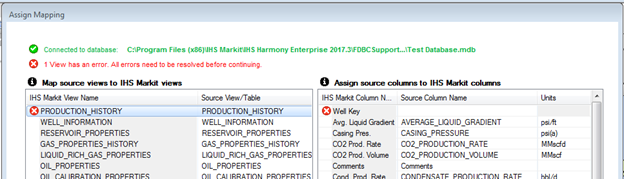
When there are errors in the database mapping, a red X is displayed next to the IHS Markit View Name and the Column Name. At the top of the Assign Mapping dialog box, an error count is listed. Errors may include missing identifiers, or mapping a column of an inconsistent data type (for example, mapping text to numeric Harmony Enterprise data).
IHS Harmony Enterprise™ 2018.1 | Last revised: March 20, 2018
Copyright © 2018 IHS Markit Ltd. All rights reserved.