Layers
Layers are graphical strata that you can display on top of the GIS map. Layers include gridlines, geopolitical borders, and well icons. You can show and hide layers by selecting or deselecting items in the tree structure.
Layers include the following:
- Border Layers — displays the political borders for all countries, the provincial borders in Canada, and the state borders in the United States.
- Grid Layers — displays each of the available coordinate systems. The DLS and NTS coordinate systems are only available within certain regions.
- Shapefile Layer — a shapefile is a collection of files that contains simplified geo-spatial and attribute information to describe points, arcs, and polygons. These points and shapes represent objects or locations on a map (for example, a well, a lake, or political borders).
For more information, see shapefiles.
- Image Layer — any image (for example, a photograph) can be imported as an image layer. While importing an image file you are prompted to set desired coordinates for three points on the image. These points are used to position the image on the GIS map.
- Project Layers — includes all wells / facilities and annotations.
- Facilities — this layer includes all wells and meter stations.
- Facility Annotations — annotations connected to a specific entity (such as, wells) that display selected attribute and analysis information. For more information, see the Facility Annotation Editor dialog box.
- General Annotation — annotations to be displayed on the GIS map. While adding a general annotation, you can customize the text, appearance, and position.
- Bubble Map Layer — bubble maps graphically represent attributes associated with wells and other entities. For more information, see bubble maps.
- Flag Layer — flags are similar to bubble maps, but they do not reflect well attributes. Instead, they are simple markers that can be used to designate individual or multiple entities. For more information, see flags.
By default, layers are displayed with Project Layers being drawn on top of the GIS map, followed by Grid Layers, and Border Layers. This corresponds to Project Layers being at the bottom of the tree structure and Border Layers being at the top.
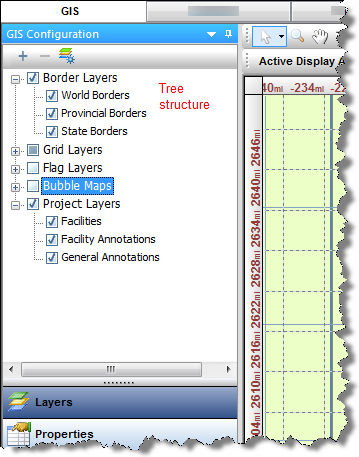
To change your display order, drag the category in the tree to your new location.
|
Note:
|
Drawing layers on top of others may hide certain information. You can avoid this by setting the transparency of the top layer by right-clicking it in the tree and editing its properties. |
Shapefiles
With Harmony Enterprise, you can only select shapefiles with the .shp extension, but shapefiles usually contain a collection of files with different extensions. Harmony Enterprise uses the following file types to make the import process faster and more accurate:
- DBF — contains shapefile information and labels for the data. (The information this file contains is used when shapes are converted to facilities.) This file is the least critical; if it is missing, the shapefile is still imported.
- PRJ — contains the datum for the shapefile in projection, unit, datum format. (Harmony Enterprise supports NAD27, NAD83, and WGS84.) If this file is missing, the shapefile may not be placed in the correct location.
- SHX — loads individual shapes from the file. This file reads the bounding boxes of an area and works as a sort of index for the .shp file, so that all the data contained in the .shp does not need to be cached. If this file is missing, loading may be slow and more memory may be consumed.
These files make using shapefiles easier, so we recommend keeping them together in the same directory.
Compatibility
If you encounter issues importing a shapefile, it may be because your shapefile is incompatible with Harmony Enterprise. Ensure that your shapefile meets the following requirements:
- Mercator projection
- Geographic coordinate system (GCS)
- NAD 27, or NAD 83, or WGS 84
- Latitude and Longitude in decimal degrees
IHS Harmony Enterprise™ 2018.1 | Last revised: March 20, 2018
Copyright © 2018 IHS Markit Ltd. All rights reserved.
 Click to see subtopics: