 Click to see subtopics:
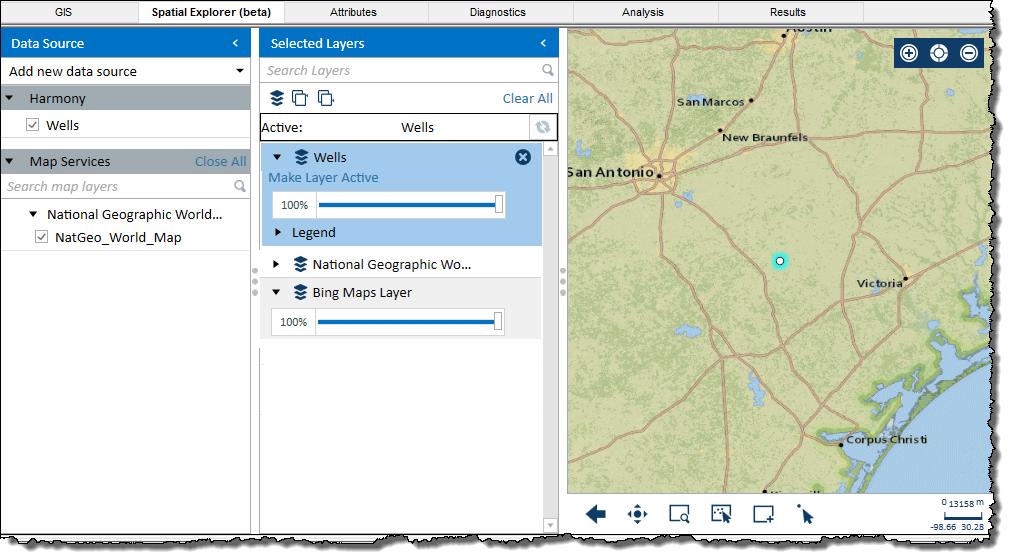
Spatial Explorer displays wells on a map, which you can customize with various layers. The default layer / data source is Bing maps. However, you can add multiple data sources to the Spatial Explorer map. For more information, see Data Source pane.
If you select an entity in the Spatial Explorer, it is also displayed in the GIS map and Entity Viewer (and vice versa). The scale can be different, but both the Spatial Explorer and GIS map display a consistent view. The map that was last used (for example, panning or zooming in the Spatial Explorer or GIS) determines the viewable map area. Actions such as moving or deleting an entity are also mirrored in the GIS map. Any selections (for example, different layers) are saved when you close and re-open Harmony Enterprise.
Spatial Explorer supports one datum system / projection: WGS 84 (World Geodetic System, modified in 1984)
The Spatial Explorer tab has two panes: Data Source and Selected Layers. Both panes can be hidden by clicking the left arrow (<) on the right-side of the pane.
By default, the Harmony / Wells layer is selected, which displays your selected wells on the map.
Each data source you add to Spatial Explorer includes all the data layers available from that source. If the data source requires a username and password, you are prompted to enter these credentials the first time you connect to the data source.
To set up a new data source, click Add new data source:
To move the data source to the Selected Layers pane so that you can display the data source on the map, click the data source's checkbox.
| Important: | After adding a layer, you need to deselect and select the Harmony / Wells layer's checkbox in order to see your wells. If your wells become hidden, deselect then select the Harmony / Wells layer's checkbox to show them. |
Data sources and any data layers they include may appear outlined in red. This means that Spatial Explorer can no longer access that data source. This can occur if the data source is no longer available, or if you need to provide login credentials for the data source.
To remove all of your data sources (excluding the Harmony / Wells layer, click Close All.
You can display any of the data sources as a layer on the map.
Spatial Explorer adds layers to the Selected Layers list on top of each other, so each new layer you add is added at the top of the list. If you want to change the active layer, click Make Layer Active for the layer you want to be active. Or, you can click a layer and then click the Refresh icon ( ).
).
| Tip: | The Active field near the top of this pane indicates which layer is the active one. This can be an important thing to be aware of when clicking zoom icons at the bottom of the map. |
The order of layers in the Selected Layers list defines the display order, meaning that data layers at the top of the list display on top of any layers that are lower in the list. You can drag layers within this tab to the order you want.
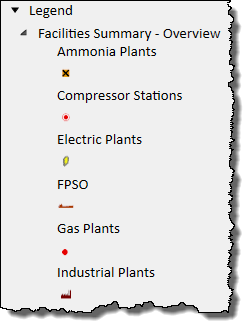
If you add a layer containing well data, Spatial Explorer automatically adds an additional layer containing deviation survey data for the wells in the layer you added. If none of the wells have deviation survey data, then this additional layer does not contain any data.
This pane has the following icons:
 Search Layers — type your search term and press Enter.
 /
/  Show / Hide Layers — toggle your layers on or off.
 Expand All — opens all of your layers in this pane.
 Collapse All — closes all of your layers in this pane. Refresh — click this icon after selecting an inactive layer in order to change it to the active layer.
 Remove Layer — deletes the layer from your map.
The map displays your layers as selected in the Selected Layers pane.
The map has the following icons:
 Zoom In — Zooms in on the map.
 Original Extent — restores the map to the original view shown when starting Spatial Explorer.
 Zoom Out — zooms out on the map.
 Previous Extent — restores the map to the previous view.
 Pan — enables you to move the map.
 Rectangle Zoom — zooms in on the map based on the rectangle you draw.
  Select All In View — if the Harmony / Wells layer is active, all the data points currently in view on the map are selected. If another layer is active, the Selected Features dialog box opens.
 Select by Rectangle — if the Harmony / Wells layer is active, selects all the data points enclosed within the rectangle you draw. If another layer is active, the Selected Features dialog box opens.
 Select — if the Harmony / Wells layer is active, you can select individual data points, or multiple data points if you press the Ctrl or Shift keys. If another layer is active, the Selected Features dialog box opens.
IHS Harmony Enterprise™ 2018.1 | Last revised: March 20, 2018
Copyright © 2018 IHS Markit Ltd. All rights reserved.