 Click to see subtopics:
This dialog box is used when you import well data from a database.
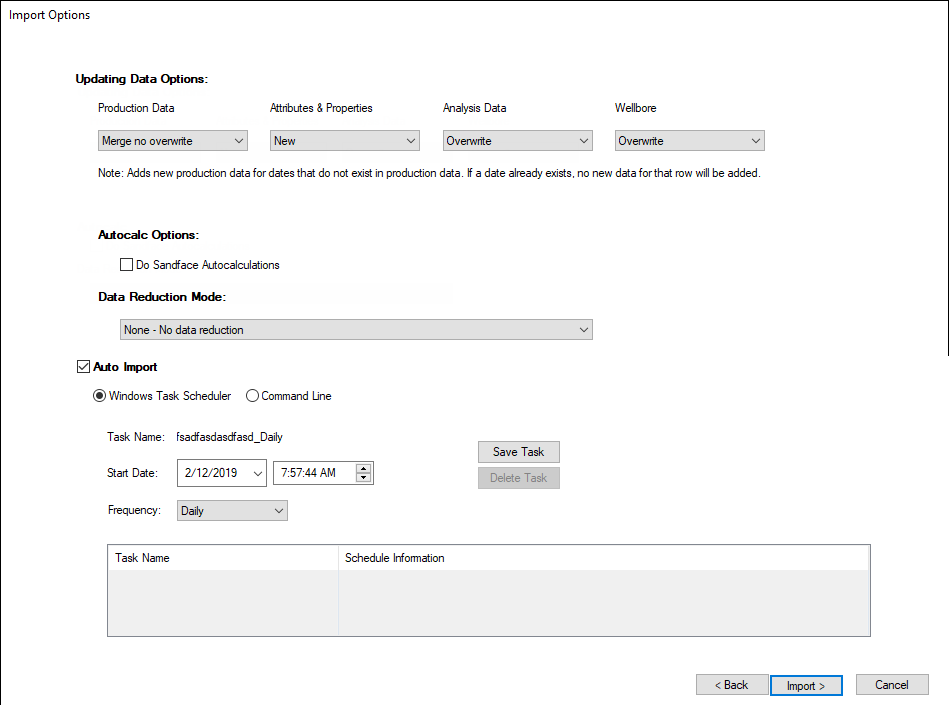
Updating Data Options
The Updating Data Options section displays the global Updating Data settings from the Options dialog box.
To change these settings for the current database import, select from the drop-down lists and click Import (or Finish if the auto-import option is enabled).
Production Data
The Production Data drop-down list has the following options:
- Append — adds new production data after the end of the existing production history. Abbreviated as "a".
- Merge no overwrite — adds new production data for any dates that do not exist in the current production history. If a date already exists, no data for that row is added. Abbreviated as "n".
- Merge with overwrite — adds new production data for dates that do not exist in the current production history. If a date already exists, that row is overwritten. Abbreviated as "o".
- Discard and replace — production data for each well is deleted and replaced with new data. Abbreviated as "d" (for "discard" from a previous legacy release). The old abbreviation was kept so that saved scheduled imports continue to work.
-
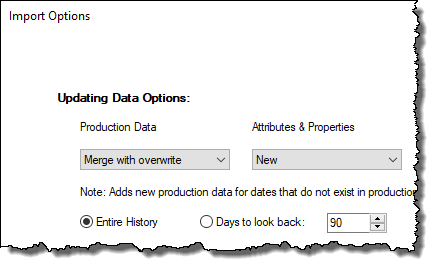
Other options are as follows:
- Entire History — by default, the entire production history is imported.
- Days to look back — if you have extensive production data, it can take longer to import. By setting a number of days to look back (between one day and 365 days), you can reduce the import time.
If you select a number of Days to look back, any data prior to the look-back time period remains unchanged. Any merging and overwriting logic, or discard and replace logic, is applied only to the look-back time period. Harmony Enterprise scans the Date Time column mapped in the source database's production history table, and uses the single most-recent date for all values in the Date Time column. For example, if the date was July 20, 2020, and our look-back time period was set to 15 days, then data is imported between July 5 and July 20, 2020. Note that only the dates in the source production database are considered; the dates in the Harmony Enterprise project are not used.
Note: If a well was not selected for import, it still exists in the production table. Harmony Enterprise scans the dates for that well, and all other wells, in the production table. The look-back time period is not applied on a well-by-well basis. Instead, a single date is returned to look back from, and the same time period applies to all wells.
Attributes & Properties
The Attributes & Properties drop-down list has the following options:
- Ignore — does not import attributes and properties for existing wells. Abbreviated as "d" (for "discard" from previous releases). The abbreviation was kept "as is", so that saved scheduled imports continue to work.
- New — adds new attributes and properties when data did not previously exist. Abbreviated as "n"
- Overwrite — adds new attributes and properties, and replaces existing values with newly imported ones. Abbreviated as "o".
Analysis Data
These settings only apply when you import well data from a database (Aries), or from PowerTools.
The Analysis Data drop-down list has the following options:
- Ignore — does not import analyses. Abbreviated as "d" (for "discard" from previous releases). The abbreviation was kept "as is", so that saved scheduled imports continue to work.
- New — only adds new analyses. Abbreviated as "n".
- Overwrite — replaces existing analyses when matched with imported ones, and adds new analyses. Abbreviated as "o".
Tip: If you are importing decline analyses from an Aries database via the Database Connection wizard, you may want to adjust your default settings, especially if your default settings include the Discard option.
Wellbore
The Wellbore drop-down list has the following options:
- Append — adds new wellbore configurations. Abbreviated as "a".
- Ignore — does not import attributes and properties for existing wells. Abbreviated as "d" (for "discard" from previous releases). The abbreviation was kept "as is", so that saved scheduled imports continue to work.
- Overwrite — adds new wellbore configurations, and replaces existing configurations with newly imported ones when the dates match. Abbreviated as "o".
Autocalc
To automatically calculate sandface pressures during an import, ensure the Do Sandface Autocalculations checkbox is selected. Note that calculating sandface pressures can take a considerable amount of time (depending on the number of wells and their complexity).
Data Reduction Mode
Data reduction is the process of reducing high-frequency data prior to importing. Data reduction options include the following:
- None — data reduction is not applied.
- Auto — applies data reduction as per your settings in the Options dialog box.
- Manual — opens the Data Reduction dialog box where you can customize your settings.
Auto Import
To schedule automatic well updates using the Windows Task Scheduler or command line, click the Auto Import box.
For more information, see Windows Task Scheduler and command line.