If you do not have an existing Harmony Enterprise database on-premises that requires migration into the cloud, you can create a blank one in RDS by following these steps:
Create an RDS database server with the Engine Type set as Microsoft SQL Server (if you do not already have one). This is the server where databases can be created.
You do not need to create a blank database as the Harmony Enterprise Database Manager can do that for you.
Install the Harmony Enterprise Database Manager on a computer that has access to RDS. (It can be on-premises, or in the cloud.)
Use the Database Manager to create a new Harmony Enterprise database:
a. Launch the Database Manager
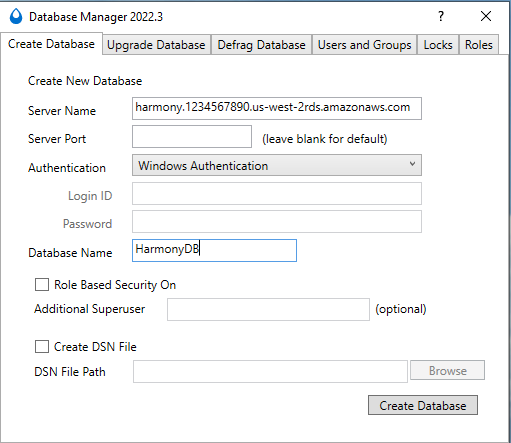
b. In the Create Database tab:
- Type the SQL server name. (You can find this in the RDS console for the server you created in step 1.)
- Select SQL Server Authentication and type the administrator username and password that was specified when the server was created. (You can use another login with enough permissions, but the administrator SQL Login is guaranteed to have the required permissions.)
- Type a Database Name.
- If you intend to use role-based security (RBS), enable it now. You can also give another user permission to set up and modify RBS permissions for all Harmony Enterprise users (that is, the Additional Superuser option).
- When you are done, click the Create Database button and wait for the process to complete.
When you are done, click the Create Database button and wait for the process to complete.