With the clipboard, you can copy and paste data, including analyses, between entities, or within a single entity.
The clipboard supports:
- Decline analyses
- Analytical models
- Unconventional reservoir analyses
- Properties editor
- Wellbore editor
- Multi-well models
-
Analysis Nodes (containing linked Decline or Multi Segment analyses)
The clipboard also supports bulk pasting properties to a selection of wells. After selecting wells in the Entity Viewer, click the Context Menu ( ) icon in the toolbar to select content from the clipboard. Or, you can drag a clipboard item to one of the selected wells and paste the copied properties to the entire selection.
When you copy data to the clipboard, the Clipboard docking window opens, and data is displayed within the pane as a button.
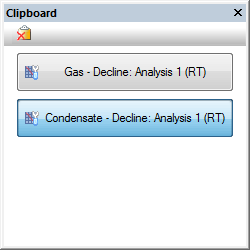
To rename content in the clipboard, right-click the item you want to rename.
To delete content from the clipboard, click the Delete icon ( ) in the toolbar, or right-click and select from the context menu.
To copy wellbore configurations to the clipboard, two options are available:
- copy full configuration
- copy without depths — often useful for copying between wells as the depths of tubing, casing, etc. are specific to each well. You can use this option to copy diameters of pipe, flow path, and correlation without the depths of the source configuration.
To paste content to a new well or analysis, click the Paste icon ( ), but ensure that the correct item is selected in the clipboard. Alternatively, you can drag-and-drop clipboard items.
If you have an Analyses Node that has linked analyses of various types, only analyses that are supported by clipboard will be pasted. Example: consider Analysis Node with these linked analyses: Gas Decline, Oil Multi Segment, Oil Volumetrics. You can copy this Analysis Node to clipboard, but when you paste it to another well, only Gas Decline and Oil Multi Segment will be created.