Click to see subtopics:
Panes are windows in Harmony Enterprise that contain specific groups of data. Panes include the Entity Viewer – Hierarchy pane, the Entity Viewer - Custom pane, the Clipboard, the Status Window, and all of the data windows inside the tabs. You can move panes to a variety of positions to suit your needs.
Docking functionality
When you click-and-drag the pane's title bar, the docking navigator is displayed.
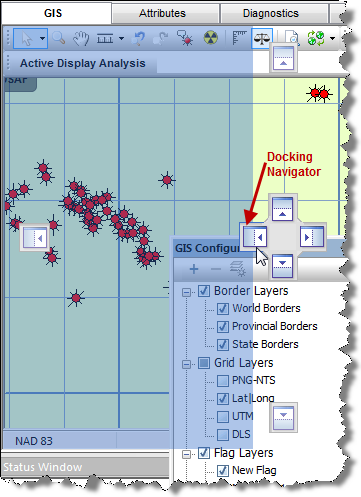
You can dock the pane in these positions:
- top, bottom, left, and right of the application's window
- in a tabbed view
To dock the pane in a tabbed view, hover over the center box and release. Note that you cannot use a tabbed view with non-docking panes.
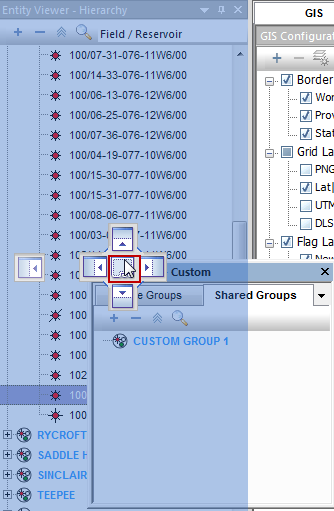
To undock the pane, click-and-drag the tab to a new location.
If you need to reset your docked panes to the original settings, see resetting docking panes.
Pane options
When you right-click the pane's title bar, you can select various options from the context menu.
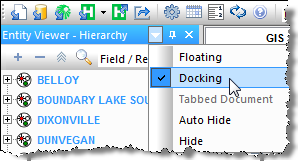
- Floating — detaches the pane from the main window. You can move the pane to your preferred location, including outside the application's window.
- Docking — returns the pane to its last-docked position.
- You can also double-click the pane's title bar to float / dock the pane.
- Auto Hide — moves the pane to a tabbed position on the left-side of the application.
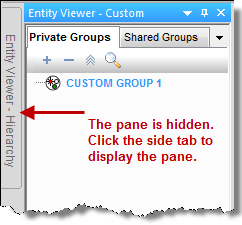
- Hide — this option is only applicable for the Clipboard and the Status Window. If you select this option, the pane is hidden. To display a hidden pane, click the View menu and select Toolbars and Docking Windows, Clipboard or Status Window.
Pin functionality
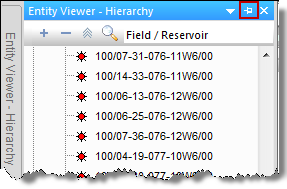
If you click the Pin icon ( ) in the pane's title bar, the pane moves to a tabbed position on the left-side of the application.
To return the pane to a docked position, click the sideways pin icon.