Configuring LAS tools pro
Configure the format in which LAS files are saved, how ASCII log data is rendered and saved, how tops are presented, the placement of the main toolbar, and whether explanatory text appears alongside buttons in the toolbar.
For details on configuring log display options for the Visual Log tab, see Related Topics below.
To configure LAS tools options
From the Settings menu, select from the following options:
Save Files with Original Filename - When disabled, saves file with only first eight digits as file name. For example, a file originally named 100011206220W500.las would be saved as 10001120.las, which is compatible with older operating systems.
Save Files as DOS, UNIX - Unix format ends lines with the LF (\n) character. DOS format ends lines with both the CR and LF (\r\n) characters.
Set Data Decimal Places - Click to display the Set Data Decimal Places dialog box as depicted below and type the number of decimal places to use when displaying and saving data in the ~A ASCII Log Data section of the LAS file. This decimal setting only affects curve data, not other numeric data in the LAS file.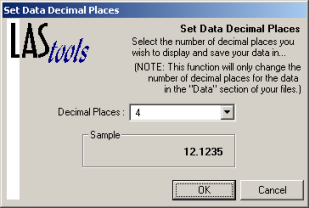
Auto-Number Curves in Curve Description - Whether a number precedes each curve description that appears in the Description column in the Curves tab and the description that's written to the ~Curve Information Section of the LAS file.
Show Tops with Trailing Colon, Units, on Visual Well - Configure whether tops displayed on the Tops tab include a unit reference and a colon at the end. Select whether tops are drawn across the logs that appear on the Visual Well tab.
Toolbar at Top, Side - Select whether the toolbar is positioned vertically along the left side of LAS tools or horizontally along the top. Our preference is the toolbar at the side, as labels appear alongside the buttons. When the toolbar is aligned along the top of the window, you can only see the button labels by hovering the cursor over a button.
Show Text on Buttons - Select whether button descriptions appear alongside buttons in the toolbar. Regardless of whether this is selected, hover the cursor over a button to display a button description in a tooltip.
 Related Topics

IHS Markit™