Converting between MD and TVD Units
Convert an LAS file between measured depth and true vertical depth using a directional survey file. Essentially, you open the LAS file, and then open a directional survey file and import the TVD column that appears in the directional survey file into the MD LAS file.
To convert between MD and TVD units
- From the Function menu select TVD / MD conversion (
 ).
).

The MD to TVD Conversion or the TVD to MD Conversion dialog box appears.

- In the display pane, select the curve to use for the depth reference.
- Click Import TVD File.
The Open dialog box appears.

- Browse to the directional survey file and then click Open.
The Import ASCII Data dialog box appears. This dialog box enables you to define the columns and lines of importance.
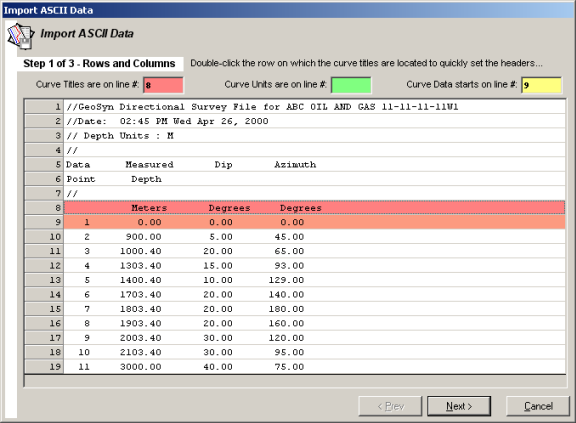
- Type the line numbers on which the curve titles, curve units, and curve data begin, and then click Next.
The directional survey file must include a title for the Depth and for the TVD measurement, and the depth units in the directional survey file must match the units in the LAS file into which you are importing the directional survey.
You may need to edit the directional survey file using an ASCII editor.
The second dialog box of the Import ASCII Data wizard appears. This dialog box enables you to convert the delimited date into columns.

- Select the character by which the file is delimited, and then click Next. If you select Other, type the delimiting character found in the file when viewed using an ASCII editor.
When the correct delimiter is selected, each data value appears in a separate cell as shown above.
The third dialog box of the Import ASCII Data wizard appears.
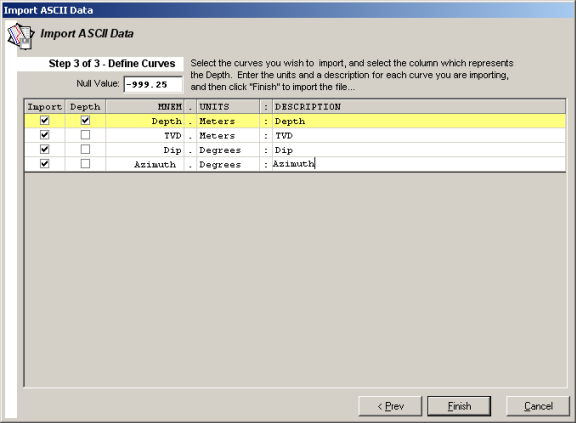
- Select the columns to import and also the column from which to import depth measurements, and then click Finish.
LAS tools evenly increments the imported data and normalized the depth step between the two files.
The Merge Files dialog box appears.

- Click the Merge Preview tab.
The imported curve is colored blue. Curves from the original LAS file are colored red.
- Click Merge.
The MD to TVD Conversion dialog box appears with the TVD curve you just imported displayed.
- Select the TVD check box, and then click OK.
- Using the main LAS tools window, click the Data tab and note that the depth range of the file has changed. Also note that on the Curves tab the DEPT row indicates that the depth is TVD, as depicted below.

 Related Topics

IHS Markit™