Outputting Logs
Print complete logs or intervals of interest in any scale. Separate procedures appear below depending on whether you want to output a portion of the log or the entire log. If outputting the entire log, formats include paper, PDF, BMP, EMF, JPG, PNG, MP, or TIFF.
To output a portion of a log image
- Using the Visual Log tab, click Image Capture (
 ).
). - Drag the portion of the log to load into your Windows buffer as depicted below.

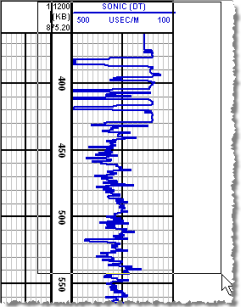
- Using a third-party application, press CTRL+v to paste the windows buffer into the document, graphic editor, PowerPoint presentation, and so on.
To print logs
- Using the Visual Log tab, click Print (
 ).
).

The Print dialog box appears.

- Select from the following options:
Click 
 to page through the expected output.
Click  to select a zoom option.
Select whether to display the log header and banner, and click Edit to specify the text to display.
Type or select an interval of interest.
Select print options. Click Settings to display the Windows Print Setup dialog box.
- Click either Print or Export depending on whether you want to output the log to hardcopy or an electronic format.
 Related Topics

IHS Markit™