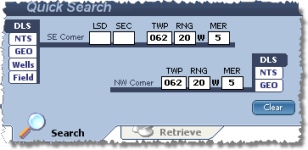
Retrieve logs and well files if you know the name of the field. Currently there is no lookup table from which you can select a field name from a list.
To search by field name
1. In the search area in the top-left of the window, select Fields.
2. Type the field name in the box. Use * or % as a multi-character wildcard.
To add additional well criteria including well parameters (TD, Spud Date, and more) click the Advanced Search checkbox and select the Wells tab.
To add additional log criteria (curve types and raster logs) click the Advanced Search checkbox and select the Logs tab.
If you add criteria to both the Wells tab and the Logs tab, LOGarc applies both.
For well list searches, to view a list of UWIs that could not be found, from the Tools ( ) menu, select Show Well List Search Summary.
3. Click Search.
If you enabled the Well List Summary dialog box, it appears showing the data types (digital, raster, well files, and UWIs) for which UWIs you specified could not be found. Click  to save results of a pane to your Windows clipboard so that you can paste it into a text editor or into an email to IHS.
To disable the advanced search criteria, clear the Advanced Search checkbox. You do not need to clear all of the options selected above in the Wells and Logs tabs.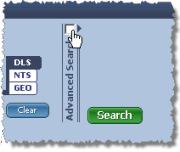
| Searching by Fields | About the Search Results Grid |
| Saving Projects |