Disconnected links
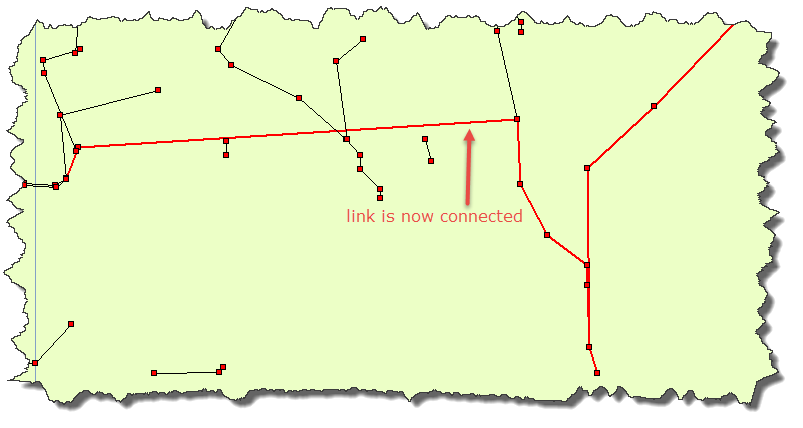
A fully connected model displays links as wide lines based on your settings in the Link Colors dialog box. You can define link colors and line widths by clicking the Properties menu and selecting Link Colors. Disconnected links display as thin black lines.
To test your model for disconnected links:
1. Make sure at least one delivery point is connected to your gathering system. For more information on attaching a delivery points, see unused facilities.
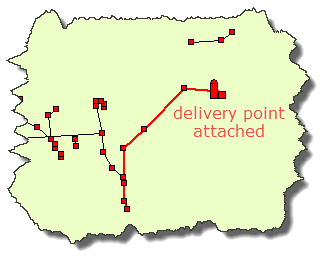
2. Identify disconnected links:
- look for thin black lines
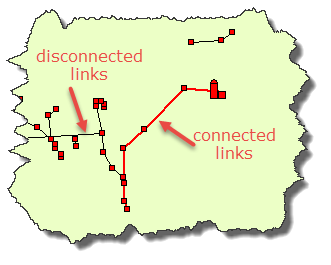
If you imported your links from a shapefile, the shapefile is displayed as thin black lines. Deselect the shapefile in the Property Manager to hide the shapefile on the map. This makes it easier to identify disconnected links.
- use the shortcut key Ctrl+L
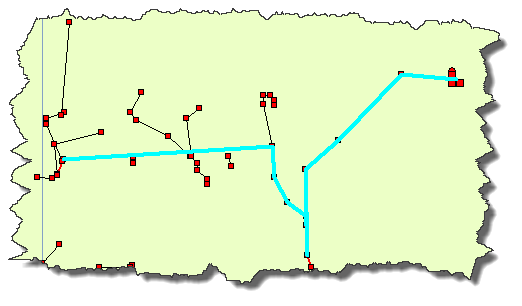
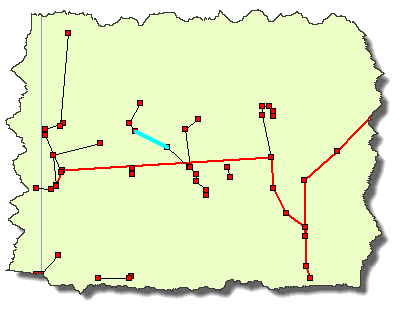
Link segments that are connected are highlighted in one continuous light blue line; disconnected links are highlighted in a light blue line, which is just for the link segment.
3. Zoom in to the disconnected link:
- verify if it is a dangling link
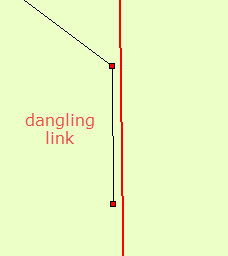
- verify if there are there multiple nodes for a link's endpoints
- Hover over the link's endpoint; a tooltip listing the nodes at that location is displayed.
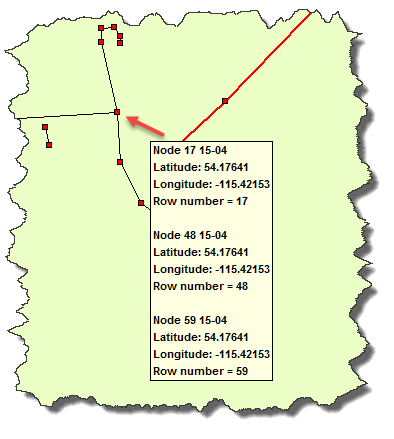
4. If the disconnected link is a dangling link, attach it to an existing link that is connected to the gathering system.
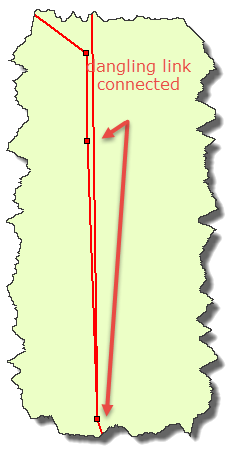
5. If the disconnected link has multiple nodes listed at one of its endpoints, hover over a link adjacent to the disconnected link, and verify if one of its endpoints is one of the multiple nodes listed for the disconnected link.
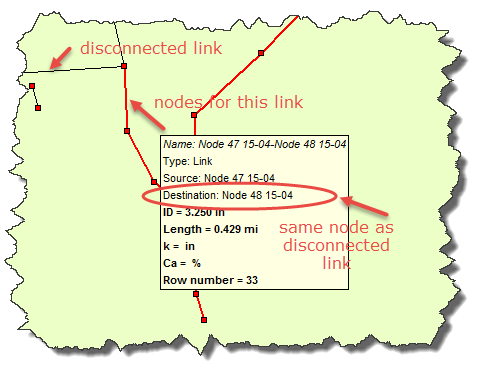
6. If the adjacent link has one of the same endpoints as the disconnected link, reconnect the disconnected link to the same node.
A highlight bubble is displayed and at the reconnection point, and a dialog box is displayed prompting you to select the node to reconnect to.
Select the node of the connected link.
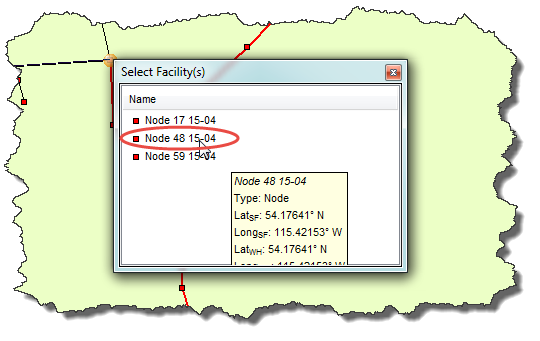
The link is displayed as a wide line indicating it is now connected to the gathering system.
7. Repeat steps 2-6 until your gathering system is fully connected.