Using separators
 Click to see subtopics:
When using separators, you can recombine separator outlets to model your downstream gathering system, edit separator parameters, and change the separator's orientation on the map.
Setting the recombine state
To set the recombine state:
- Right-click the separator on the map, select Recombine, and click one of the options: none, all, gas oil, gas water, and liquid.
- Or, click the Facilities menu; select Separators; then select a Recombine state from the drop-down list in the Recombine column.
For more information on recombine states, see separator outlet options.
Editing separator parameters
To edit separator parameters:
1. Click the Facilities menu, and select Separators.
Or, right-click the separator on the map, select the separator, and click Edit.
The Separator dialog box opens.
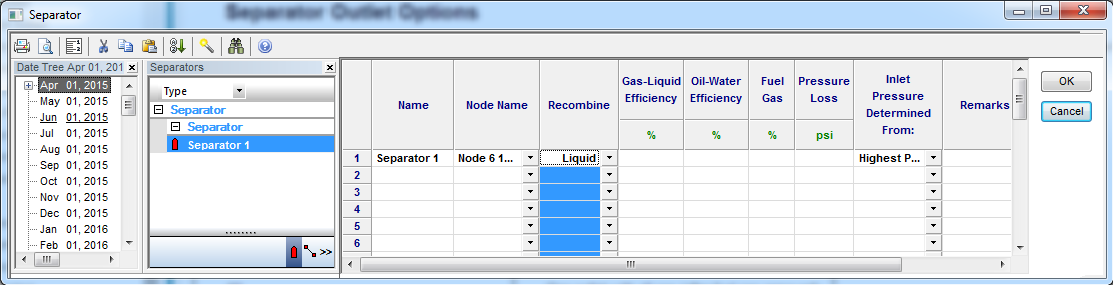
2. Set the Recombine state from the drop-down list.
3. (Optional) Set the Gas-Liquid and Oil-Water Efficiencies based on the operational performance of the separator.
4. (Optional) Enter the Fuel Gas extracted.
5. (Optional) Enter the Pressure Loss.
6. Set the source for your Inlet Pressure from the drop-down list.
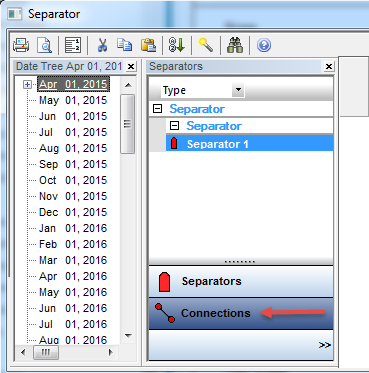
7. (Optional) Click the Connections button to view the separator's links.
8. Click OK.
Changing the orientation of separators
To make sure the links to your separator do not overlap, you can change the orientation of a separator:
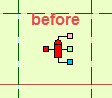
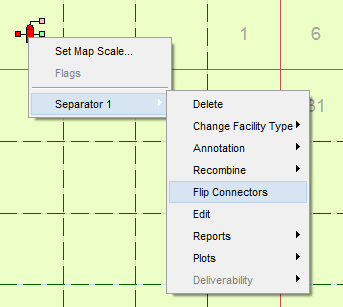
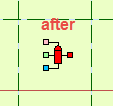
Right-click the separator on the map, and select Flip Connectors.
The orientation of the separator inlet and outlets is rotated 180°.