Using the name generator
Piper includes a name-generating tool that enables you to customize the names of nodes and facilities as they are created in the gathering system model.
To use the name generator:
1. .Click the Configure Name Generator icon ( ) in the GIS design toolbar.
The Facility Name Generator Configuration dialog box opens.
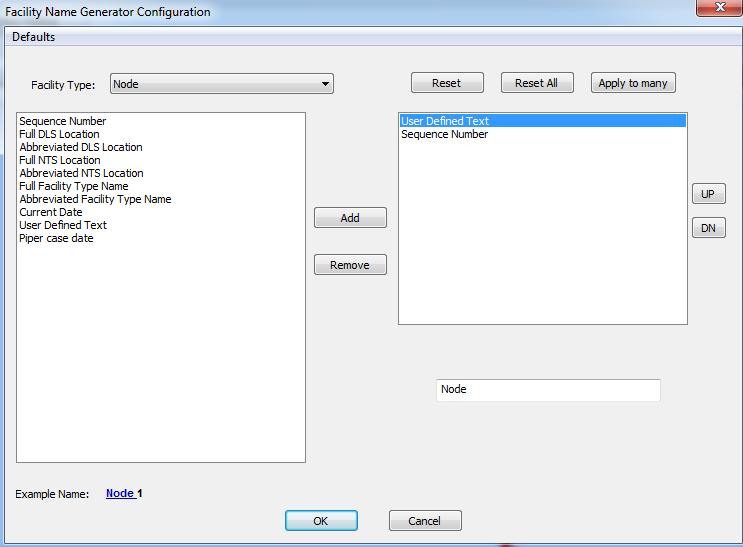
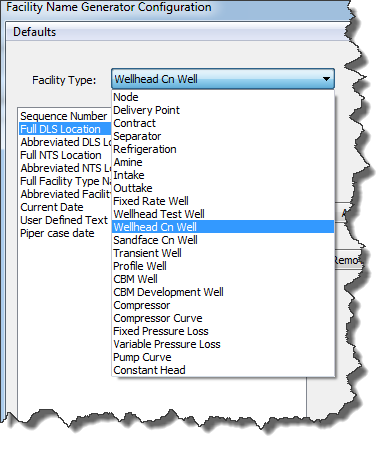
2. Select the Facility Type from the drop-down list.
3. Select your name elements from the left-side box and click Add to form the naming scheme for the facility type:
- Sequence Number — specify your Start and Increment values.
- Full DLS Location — when facilities or nodes are placed in a location covered by the Dominion Land Survey coordinate system, the facility name reflects that location.
- Abbreviated DLS Location — only the ”LSD-Section” component of the DLS string is included.
- Full NTS Location — when facilities or nodes are placed in a location covered by the National Topographical Survey coordinate system, the facility name reflects that location.
- Abbreviated NTS Location — only the ”1/4 Unit - Unit -Block” component of the NTS string is included.
- Full Facility Type Name — uses the facility name (e.g. Compressor, Fixed Rate Well, etc).
- Abbreviated Facility Type Name — uses an abbreviated facility name (e.g. Comp, Sep, Well, etc).
- Current Date — specifies the date when the facility was added as per the local time clock.
- User Defined Text — any text string can be added, including spaces to separate other text strings.
- Piper Case Date — specifies the current configuration date when the facility is being added.
Selected name elements are displayed in the right-side box, and an example is displayed at the bottom (providing a preview of the generated name).
4. (Optional) To apply the customized naming scheme to other facility types, click Apply to many.
A dialog box opens with a list of facility types to select.
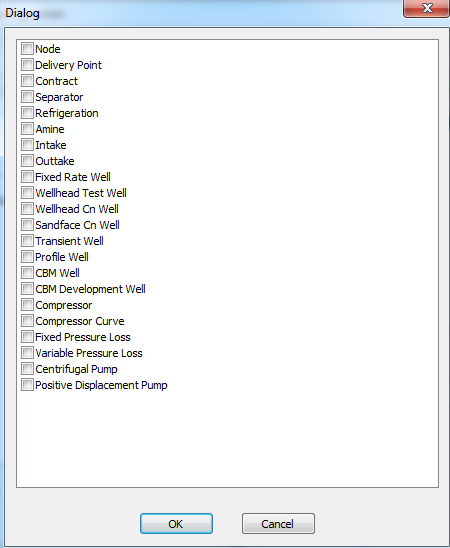
5. (Optional) Select the additional facility types and click OK.
All selected facility types have the same naming convention applied.
6. Click OK again to apply the name selections, and close the Name Generator dialog box.