Modifying loop link selection
 Click to see subtopics:
A loop link designates a location where flow rate is being calculated. For example, when flow can go multiple ways, a loop link defines the key pipe link used to calculate how the total rate should be split between those multiple paths. Loop links are required whenever flow is split, such as for parallel flow paths and when multiple delivery points exist.
The default setting is for Piper to automatically select loop links for each flow split in the gathering system model. We recommend you use this default when building your model. You can also manually select loop links. However, manually selecting loop links should be done only if required, and after your gathering system model is built.
| Important: | If you manually select loop links, you can only designate one link in a flow split to be a loop link. |
Manually selecting loop links
To manually select loop links:
1. Click the Properties menu and select Defaults.
The Default dialog box opens.
2. Select User Selects Loop Link for the Default Loop Link Selection Method.
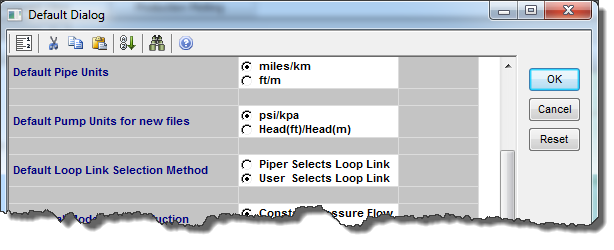
3. Click OK.
The Looped column is enabled in the Gathering System dialog box.
4. (Optional) Click Ctrl+L to review the current loop assignment on the map.
5. On the map, find the loop (i.e., the flow split) where you want to select a loop link.
If a loop link has already been selected for that loop, make a note of its start and end nodes.
6. Right-click the link you want to designate as a loop link and select Edit. To determine optimal loop link selection, see Optimizing loop links.
The Gathering System dialog box opens with the selected link highlighted.
7. Toggle the Looped checkbox to Yes.
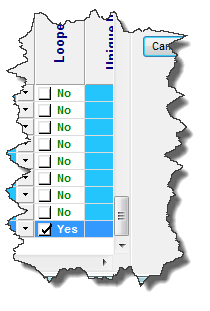
| Important: | If you noted an existing loop link in step 5, find that link in the Gathering System editor, and toggle its Looped checkbox to No. |
8. (Optional) Enter a remark in the Remarks column.
9. Click OK.
Missing loop link
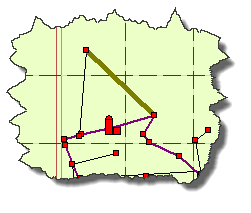
If a message is displayed in the status window indicating that a loop was created without a designated loop link, then you must add a loop link in your gathering system model. Until you specify a loop link, Piper disables one of the flow paths for that loop. Disabled loop links are displayed in black on the map.
To correct missing loop links:
1. Review the loop and select a link to designate as a loop link. See manually selecting loop links above.
2. For the disabled link, toggle the Disable Link checkbox in the Gathering System dialog box to Off so that the link is now enabled.