Importing profile production
Profiles are used when you want to import or manually enter gas or fluid rates.
To import profile production:
1. Click the Import menu and select Profile Production Import (Text or Excel).
2. Browse to the file you want to use (.csv, .txt, .xlsx, xls).
3. In the Import Data dialog box, select the columns you want to import.
Single profiles can be imported, and you can select the fluid and unit type for columns. (The file name is used to set the profile name.)
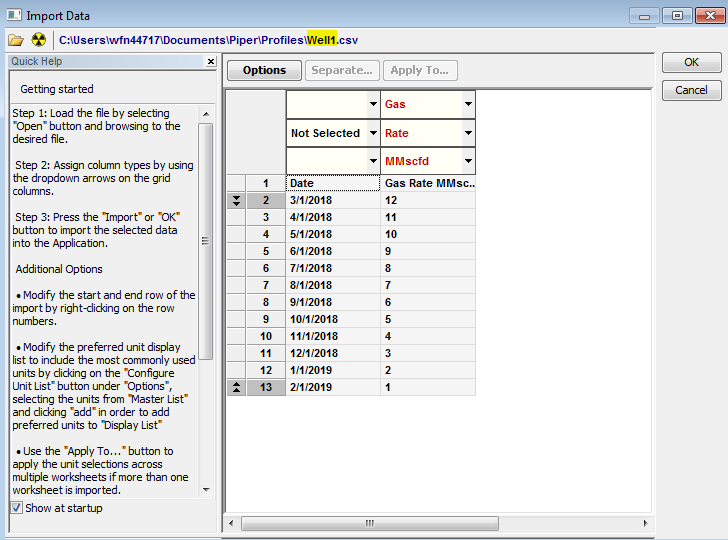
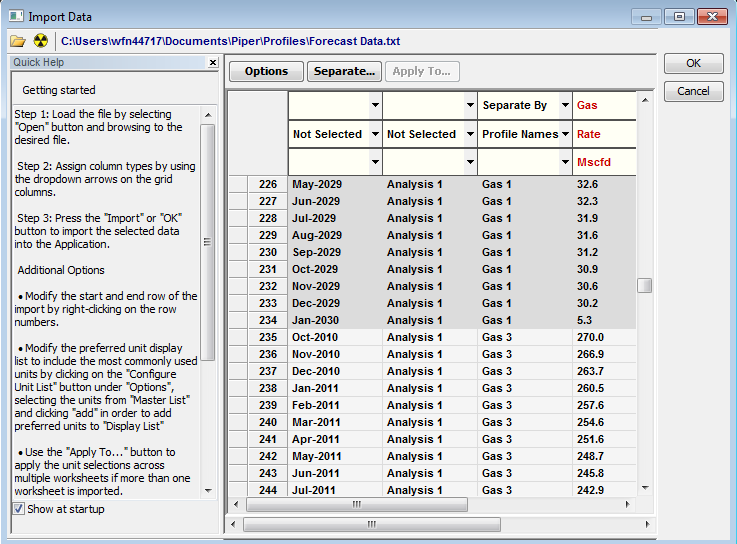
Multiple profiles can also be imported from a single file in one of two formats.
i.) You can select a profile name (included in the data) for one of your columns by selecting the Separate By option.
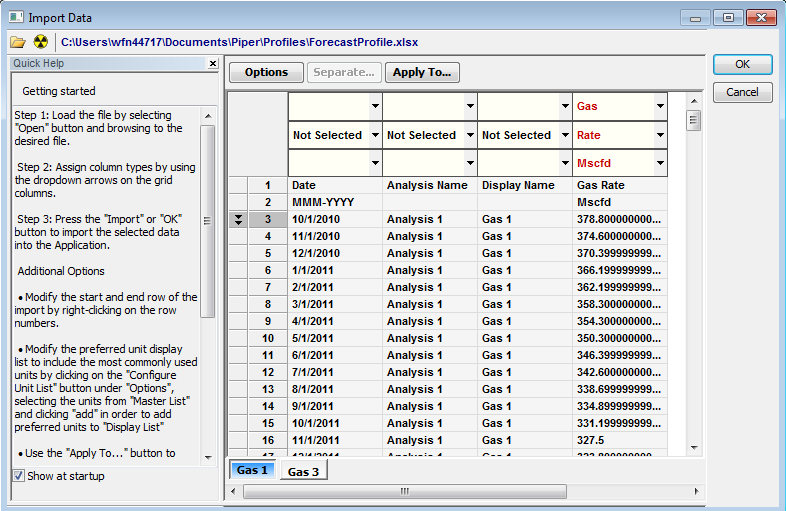
ii.) You can also separate profiles in tabs with an Excel file. If the format is identical in all tabs, you can click the Apply To button to apply the format once, and it is copied to all tabs.
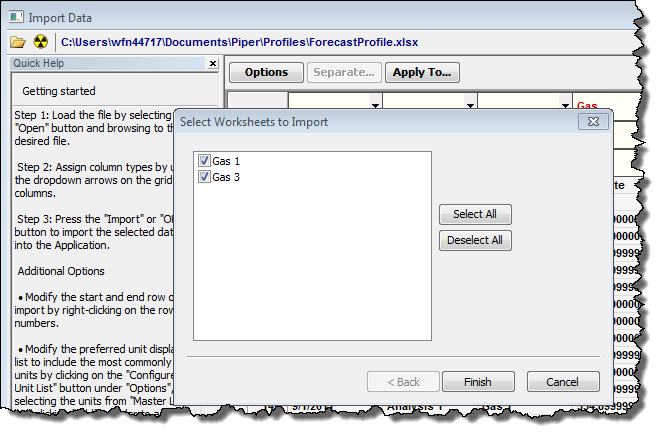
When multiple profiles are mapped, you can confirm your selections prior to importing the file by clicking the Finish button.
When the profile name exactly matches an existing profile, you are given an option to overwrite the existing profile, or discard the imported one. (You can set your default behavior for importing profiles by clicking the Properties menu and selecting Customize, Recent File Options.)
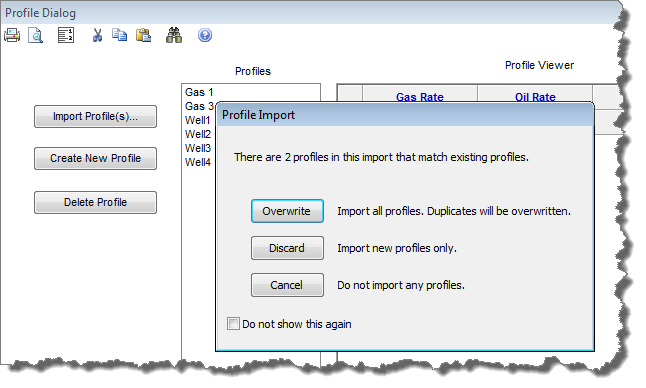
Or, click Create New Profile and:
- Enter a Profile Name in the Profile Name Editor dialog box.
- When creating profiles for profile wells, profiles are typically associated with a well grouping which can be used as the profile name. However, if each well maintains a separate profile, enter the name of the selected well as set in the Well Name column.
- Click OK.
- Enter expected gas, oil and water rates as applicable.
- When creating profiles for profile wells, enter rates for each period of your forecast duration in the Profile Viewer grid. Rates are based on monthly or daily averages.
- When creating profiles for gas lift, profiles are defined on a period basis. For example, to define the gas lift volumes for 12 months, 12 period volumes need to be defined for the profile.
The Profile Viewer grid is populated with the imported or entered rates.
4. Click OK.