Seasonal temperatures
By default, the Seasonal Temperatures pane is not visible. Once it is toggled on, it opens at the bottom of the content pane directly above the status window.
To show or hide the Seasonal Temperatures pane, click the View menu and select or deselect Seasonal Temperatures.
By creating temperature profiles, you can view the effects of temperature on your system. For additional information, see verifying default property settings and adding a temperature profile.
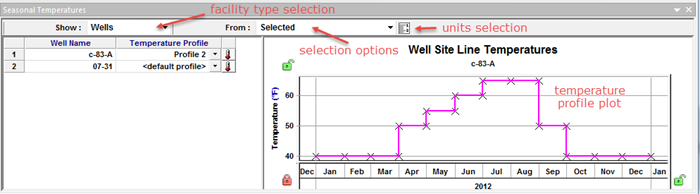
The Seasonal Temperatures pane consists of the following:
- Show — facility type selection; wells or links
- From — selection options:
- Selected — the wells or links listed are only those that are selected on the map
- All — Current Configuration - the wells and links listed are only those that are present in the current configuration (the configuration currently selected in the case controller)
- All — All Configurations - the wells and links listed are those present in all configurations
- Units selection — field / imperial, or metric
- Temperature profile plot — plot of the data entered for the selected temperature profile
-
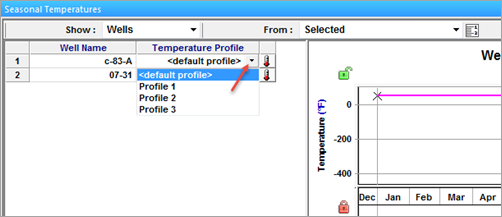
- Temperature Profile drop-down list
-
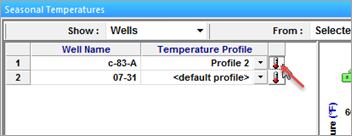
- Thermometer icon — when clicked, displays a temperature creation profile dialog box based on the facility type selected in the Show drop-down list
-
- Created profiles are listed in the temperature profile drop-down list.