 To create user-defined pay layers
AccuX can calculate reservoir properties for targets without digital logs including Gross thickness, Net Sand, Sand/Gross Ratio, and Net Pay. To do this you must place user-defined pay layers for each well.
To create user-defined pay layers
1. Select litho
track ( ) in the Standard toolbar.
2. From the Cross Sec menu, select Properties.
The Cross Section/Single Log View Common
Properties: Options
dialog box appears.
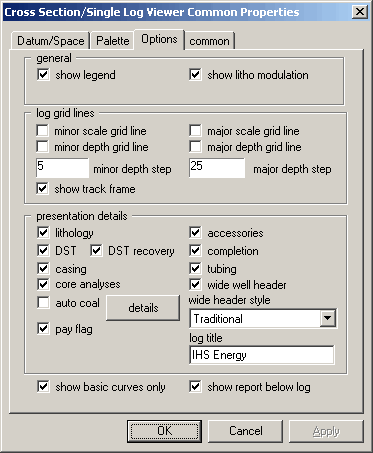
3. Select the Options tab, in the presentation details area select lithology, and then click OK.
4. Click top
( ) on the Standard toolbar.
When you move your cursor over the cross section,
a top appears below your cursor.

5. Scroll to the desired location and click to place the top.
 Note: Don’t name tops when creating user-defined
pay layers because they're only used for calculation, not correlation.
Note: Don’t name tops when creating user-defined
pay layers because they're only used for calculation, not correlation.
6. Using the above steps, place the next top and double-click the litho track between the two tops you placed.
The Single
Layer Properties
dialog box appears.

7. From the drop-down box, select one of the following:
 PAY_GAS
PAY_OIL
PAY_WTR
8. Click OK.
Note: Layers defined as TRANSPARENT, SANDSTONE,
LIMESTONE, DOLOMITE, CONGLOMERATE, and so on are only displayed in the
lithology column but are not used in the net pay calculation.
