
AccuX projects can contain an unlimited number of targets based on subsurface intervals that are typically defined by formation or layer boundaries.
1. From the Targets menu, select add target formation.
The Target Zone Properties dialog box appears.
2. Type a unique target name in the target zone name box and select a top and base formation from the target zone top name and target zone base name drop-down boxes.
3. Specify cutoffs for effective porosity (%), hydrocarbon saturation (fraction), shale volume (%), and so on then click OK.
Cutoffs for the target override global cutoffs.
Click to view the Target Reservoir Properties AccuX extracts from well log/core data.
1. In the left toolbar,
select AccuX Vision ( ).
).
The Setup AccuX Vision dialog box appears.
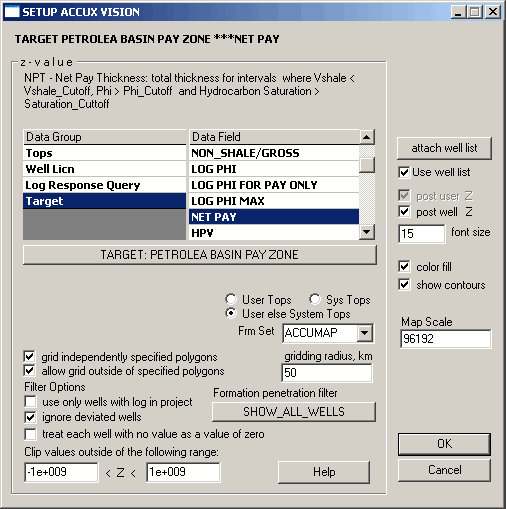
2. Select the Target Data Group, then in the Data Field, select the map layer within your target zone to display and click OK.
AccuX examines the petrophysical properties between the top and base of the target for each well with digital logs, calculates total thickness for intervals with Vsh < Shale Cutoff, and selects initial gridding parameters to generate a reasonable first approach to the map. When this process has finished the NON_SHALE map appears.
Note NON_SHALE thickness is the total thickness of all layers with low shale volume (permeable plus impermeable). This is the most robust reservoir engineering map because it's based on one curve only (generally the gamma ray). This map gives you a first understanding of the area and shows some general trends. You can start your mapping task with a porosity or net sand map, but you must carefully examine each well to make sure the calculation of effective porosity is acceptable (select suitable porosity logs for your target and if available, make a comparison with porosity from core analysis, etc).
The first step in polishing your map is to edit anomalous data points related to abnormally low or high calculated values.
The Z-value on the map for an anomalous well is too low or too high because something is initially wrong in the data tracking routine or the wrong curve was selected for calculations.
1. Find anomalous wells on your cross section and double-click the log or well header.
The Single Well Properties dialog box appears.

2. If your current active map is NON_SHALE or VSHALE or you think something is wrong with the calculation of Vshale, select the Shale tab.
The Global Petrophysical Settings dialog box sets a constant shale line for each well. However, for Cardium, Belly River, and some other formations an automatic floating shale line may be more effective. To set an automatic floating shale line, select the float shale and auto shale checkboxes and select protected for both.
Note If you do not protect some individual settings for a well, the Global Petrophysical Settings dialog box will overwrite your unprotected settings.
 If your current active map is a porosity
map, select the Porosity tab
and change the curve or method used to calculate effective porosity.
If your current active map is a porosity
map, select the Porosity tab
and change the curve or method used to calculate effective porosity.
If your current active map is a saturation
or resistivity map, select the Saturation
tab
to find the resistivity log used to calculate saturation. In the use resistivity curve drop–down list,
select another resistivity.
3. Click OK.
4. Press F5 to regrid the map.
The next step in polishing your map is to draw user-defined isolines for areas with limited source data. Additional points can be added using your mouse to guide gridding.
1. Click isoline in the Standard toolbar.
2. Draw and click to define a series of points and double-click the last point to complete the isoline.
3. Type a Z-value in the contour/gridnode z-value dialog box then click OK.
4. To hide user-defined isolines on the final printout, from the Map menu, select Properties, select the Labels tab, and clear the show masked gridding points checkbox.
