 )
)OR
Right-click the tops table in the main synthetic display and select Tops properties.
When you create a new synthetic or launch an existing one, GeoSyn automatically downloads the latest system tops and user tops from either the local AccuMap database or from the IHS Online Information Hub. If importing an LAS or GeoSyn file, you specify whether the well is in measured depth or true vertical depth units so the tops are placed at the correct depths.
Modify the display properties of tops including formation name, depth, marker attributes, and lithology. Customized tops can be copied to multiple tops lists and displayed in the main synthetic display.
Changes you make in the User Tops list in GeoSyn aren't updated in the AccuMap user database and are overwritten by the AccuMap user database next time you launch the synthetic. To change the value in the AccuMap user database, use AccuMap Tops Manager. To prevent the changed depth from being overwritten without changing the depth in the AccuMap user database, copy the top to the Generic tops list.
To change tops properties
1. From the Edit menu, select Tops properties ()
OR
Right-click the tops table in the main synthetic display and select Tops properties.
To
display the tops table in the main synthetic display, from the Edit
menu, select Synthetic properties
( ) and in the Display elements pane, select Tops table.
The Top Properties
dialog box appears.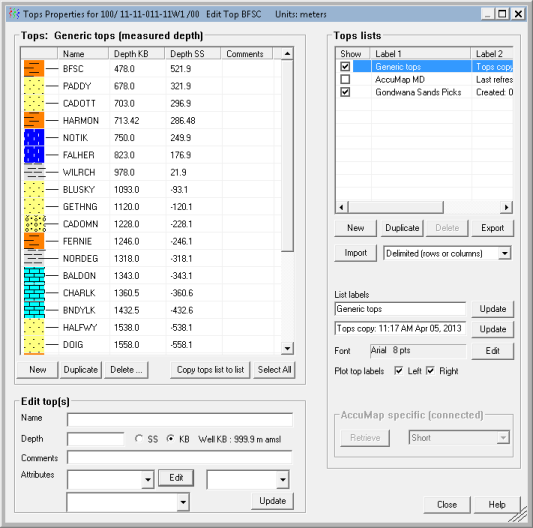
2. In the Tops lists pane, select the list with tops to display in the Tops for list pane.
3. In the Tops for list pane, either select a top to change its display properties, or click either New or Duplicate to add a row with the same information as the selected top below the selected top.
4. Below the Tops for list display pane, type the name, depth, and then select lithology and top marker attributes.
5. To change tops properties that apply to the entire list, in the Tops lists pane, select font and top plotting options.
6. Click Close to return to the main synthetic display with the changes applied.
| Importing Tops from Delimited Files | Exporting Tops Lists |
| Using Tops Lists | Importing Tops from Fixed Width Files |
| Importing Tops from GeoSyn Files | Importing Tops from LAS Files |